Push Sync
Mirror a Files.com folder out to another system: an S3 bucket, a SharePoint site, a partner’s SFTP server. You make a change in one place and it shows up in the other, so you stop copying files over by hand.
Files.com keeps two or more systems matched, on a schedule or the moment an event fires. A cloud bucket, a SharePoint site, a partner’s SFTP server, a drive in your own building: all kept current with each other. Push one way, pull the other, sync both directions, or mount a remote folder live. You get one setup, one place to see whether the data actually moved, and no middleware to maintain.
Keeping systems in step is usually held together by something fragile: an rsync cron job maintained by an engineer who left, a middleware appliance sitting between a SharePoint tenant and an S3 bucket, or a script that breaks the next time a partner rotates their credentials. You only find out it stopped working when someone asks where the file went.
Files.com Sync is the part of the File Orchestration Platform that keeps content current with every other system you run. Configure a sync between a source and a destination, pick a mode and a cadence, and Files.com runs the replication for you. Every run produces a log, every failure surfaces to the audit log and your notification channels, and there is no sync engine for you to operate.
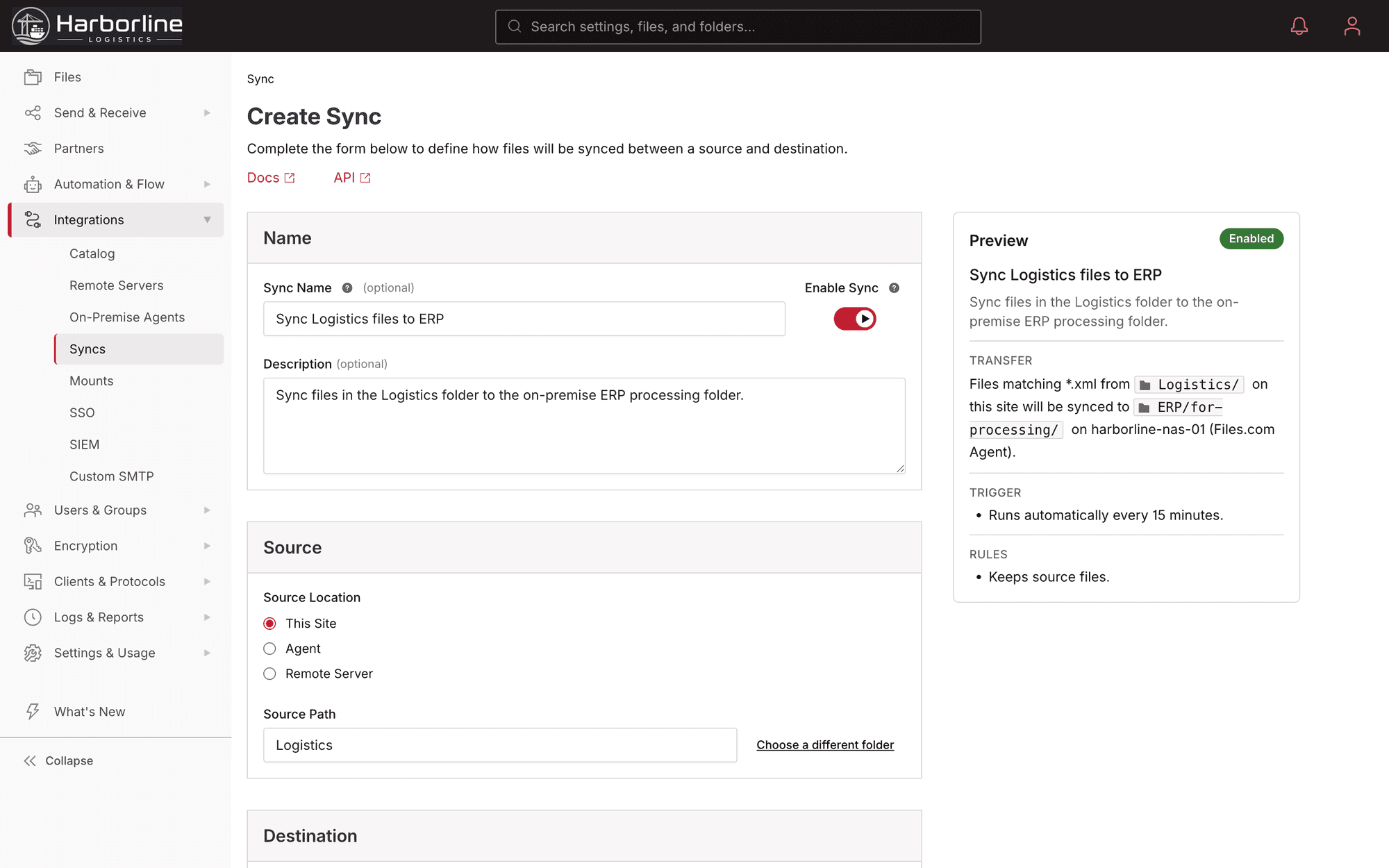
Four ways to keep systems matched. Pick the one that fits the job, from a one-direction mirror to a live window onto storage that lives somewhere else.
Mirror a Files.com folder out to another system: an S3 bucket, a SharePoint site, a partner’s SFTP server. You make a change in one place and it shows up in the other, so you stop copying files over by hand.
Bring files in from somewhere else on a schedule: a partner SFTP drop, a cloud bucket, or a network drive in your office. Files.com always has the latest copy, so nobody has to remember to go fetch it.
Keep two systems matched in both directions at once. A change on either side shows up on the other, so the two never drift apart.
Skip the copy entirely. The remote folder shows up as a normal Files.com folder in real time. The other system stays the storage, and Files.com just presents it.
Amazon S3, Azure Blob, Google Cloud Storage, Wasabi, Backblaze B2, Cloudflare R2, and more, kept in step with Files.com on the cadence you set.
SharePoint, OneDrive, Google Drive, Box, Dropbox, Egnyte, and Citrix ShareFile, synced into and out of Files.com, so the files your team edits in those apps land wherever your other systems need them.
SMB shares, NFS exports, and local disks in your own building reach Sync through the Files.com Agent over an outbound-only connection, so you open no inbound firewall port.
On its own, a file platform is just one more place your data lives. Sync connects it to the rest of your systems. The Cloud SFTP endpoint, the desktop and mobile apps, and the automation engine all work on the same files, and Sync keeps those files matched with every other system you already use.
A sync can run on a schedule. It can also be a step inside an automated workflow. A partner file lands over SFTP, the workflow pulls the latest data in, runs the sync, and hands it off downstream, with no one touching it. So your files stay current as part of the work that is already running, not as a chore someone has to remember.
“Great connectivity with virtual server connections — seamless SFTP from one host to another, easy to set up, manage, and monitor.”

The collaboration suite on one side, SFTP and object storage on the other, and a sync in between is the most common shape in the customer base.
A supplier drops files over SFTP into a Files.com folder, and a sync delivers them into the SharePoint library or Google Drive folder where staff already work. The people who handle the file never learn a second tool, and the vendor never gets a Microsoft account.
In the other direction, documents approved in SharePoint or Box sync to a partner-facing folder, so the systems and counterparties that only speak SFTP read the current version without anyone re-uploading it.
S3 output syncs into SharePoint for review, an on-premises share syncs into Azure Files through the Agent, and Box and S3 stay in step both ways, each as a scheduled or event-driven job with a log.
The dozen departmental scripts that copied files between internal servers and cloud storage collapse into one hub that reads and writes the existing buckets and shares in place, with retries and an audit trail the scripts never had.
What teams ask about keeping Files.com matched with their clouds, apps, and on-premise servers.
A Files.com Sync copies files between two systems on a schedule or when an event fires, so each side holds its own copy. A Remote Mount does not copy. The remote system stays the storage, and Files.com presents it as a folder in real time. Use a Sync when both sides need their own copy. Use a Mount when you want a live view of data that lives elsewhere.
Files.com syncs with over 50 systems: object stores like Amazon S3, Azure Blob, Google Cloud Storage, Wasabi, Backblaze B2, and Cloudflare R2; business apps like SharePoint, OneDrive, Google Drive, Box, and Dropbox; any compliant SFTP, FTPS, FTP, or WebDAV server; and on-premise SMB, NFS, or local-disk sources reached through the Files.com Agent. Files.com can also sync from one Files.com instance to another.
Files.com Sync reaches on-premise NAS, file-server, and local-disk sources through the Files.com Agent, which connects outbound only, so you do not open an inbound port or stand up a VPN. The Agent is the bridge to your network. Sync is the engine that moves the files.
Files.com syncs run on a schedule, and the tightest cadence available scales by plan. Syncs can also be triggered by an automation, so a file arrival or a webhook fires a sync run on demand. For a truly live view rather than a scheduled copy, use a Remote Mount instead. Current per-plan intervals are listed on the pricing page.
Files.com runs an integrity check on every transfer, and every sync run produces a log. Failures show up in the audit log and in whatever alerts you have set up, so a partner server going offline or a changed password does not fail silently. Transfers run in parallel, and you can cap how many connections run at once so you do not overload the system on the other end.
No-code sync and automation flows are included on every Files.com plan. Syncs and Automations share a flows allotment whose included count scales by plan, and additional flows can be purchased. Sync frequency, parallel-flow limits, and cloud-destination allotments also scale by plan. Current numbers are on the pricing page.
Sync is for two systems that stay connected: it keeps them matched for as long as you run it, and it is priced as part of the Files.com plan. For a one-time move of a bucket, a drive, or a file server from one place to another, with the price known before anything moves, use Mover, the one-time migration tool from Files.com. A free dry run counts the files and prices the exact move; when it finishes, there is nothing left running.
Give the vendor an SFTP account on your Files.com site, and set a sync from that folder to the SharePoint document library. Uploads reach the library within the sync interval, or immediately on an event-driven automation, and the vendor’s SFTP client never changes. The same works for Google Drive, OneDrive and Box.
Yes. Mount the bucket as a Files.com folder through the Amazon S3 integration and set a one-way or two-way sync to the SharePoint library. Files.com moves new and changed objects on the schedule you set, so analytics output or vendor deliveries in the bucket appear where the business team reads them.
Mount the storage as a folder in Files.com and add automations and syncs on top. Files stay in the bucket or share, and Files.com moves copies between it, SFTP servers and other systems on schedule or on arrival, with retries and a log for every run.
Start a 7-day free trial, connect a source and a destination, and let Files.com keep them matched: one direction, both directions, or a live mount. No middleware, no scripts, one log for the whole thing.
No credit card required • Free for 7 days • Live in minutes