Move And Find Files
Upload, download, find, copy, move, delete, and list files, and create folders. These are the everyday file operations an agent needs to do real work.
Files.com runs a hosted MCP server, built on the open Model Context Protocol standard. An AI client like Claude Desktop or Cursor can upload files, manage users, read logs, and run operations against a live Files.com site. Files.com is the File Orchestration Platform: the governed home for the file transfers, automations, and partner exchanges your business runs. The AI signs in like any other client and works under the folder permissions and audit trail you already have.
An MCP server hands an AI client a set of actions it can take on your behalf. MCP calls these actions “tools.” Files.com turns the platform into tools the AI can call, so a request like “move yesterday’s vendor feeds into the archive folder, then summarize what arrived” becomes a real operation on your site.
This is safe to turn on because the MCP server is not a new permission system. It runs on top of the same API and logins your scripts and SDKs already use. The AI can only do what its user account is allowed to do, so it can never reach a folder you didn’t grant. Every move it makes lands in your audit log.
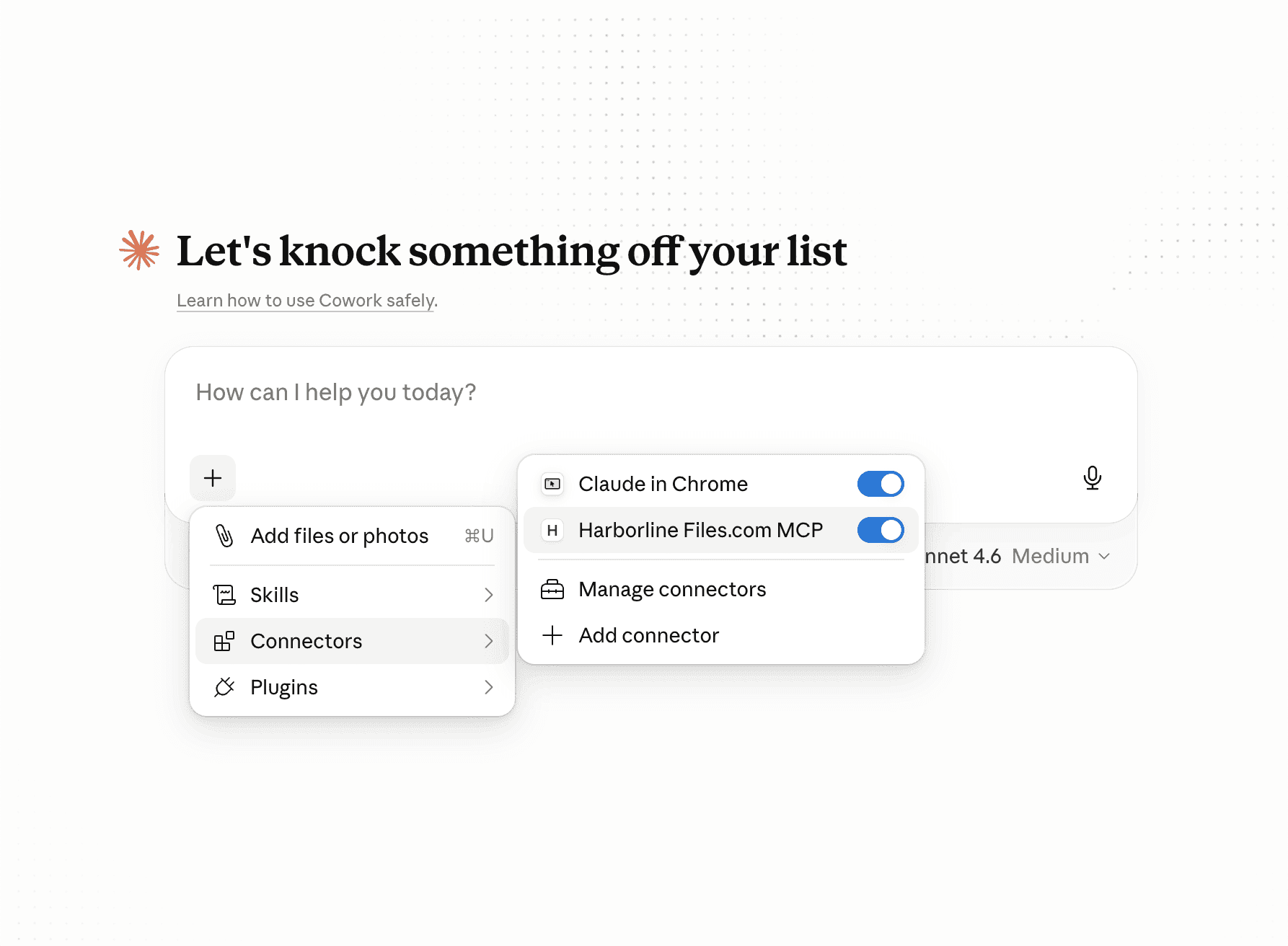
Both modes give you the same tools. Pick the one that fits your network and your compliance rules.
Files.com hosts and runs the MCP server for you at a URL on your own site. Point your AI client at the server, sign in from the browser, and it works. Headless and automated workflows can pass a Files.com API key instead. You skip the setup entirely, so this is the fastest way to connect and the recommended default.
The Local server is a Python package you install and run yourself, for teams that run tooling on-premise or block outbound connections to hosted services. It authenticates with a Files.com API key, and the MCP layer itself runs entirely inside your infrastructure.
The tools map onto the operations your team already runs through the API. The AI does the same work, under the same controls.
Upload, download, find, copy, move, delete, and list files, and create folders. These are the everyday file operations an agent needs to do real work.
Create, list, find, update, and delete share links, including recipients, registrations, and notifications. The AI can hand a file to someone outside your team on your behalf, without you cutting the link by hand.
User management, group management, and folder-permission management. An admin can let the AI handle routine account and access work, which is the busywork that fills a ticket queue.
Action logs, API request logs, SFTP, FTP, and WebDAV logs, automation and sync logs, login history, and settings-change logs. The AI can investigate what happened: who signed in, what ran, and what changed.
MCP is one of four ways AI works with Files.com. Here, the intelligence lives in your AI client, and Files.com is the system being operated. That sits alongside the built-in AI Assistant, agents that drive the API directly, and AI running inside your workflows.
The MCP server ships across all plans. SIEM-exported audit logs and audit-log retention scale by plan, so confirm what your tier includes.
What teams ask about connecting AI clients, authentication, permission scoping, auditing, and the available tool surface.
The Files.com MCP server lets an AI client interact with your Files.com site: uploading and downloading files, querying folders, managing users, reading logs, and running site operations. MCP, the Model Context Protocol, is the open standard for connecting AI models to outside tools. The AI works against your site as an extension of your team, under the same security, auditability, and access controls as any other API client.
Any MCP-compliant client can connect to the Files.com MCP server. Claude Desktop and Cursor are tested and documented, with a Claude Desktop quickstart. A single client can also connect to multiple Files.com sites at once by adding one entry per site in its MCP configuration.
The Files.com hosted MCP server supports OAuth 2.0 sign-in, so an MCP client can authenticate through the browser instead of a static credential. Sessions can also authenticate with a Files.com API key passed in the X-FilesAPI-Key header. Either way, permissions inherit from the authenticated user account: a site-admin identity gives the AI admin capabilities, and a regular user’s identity limits the AI to that user’s folders and permissions. The recommended posture is least privilege. There is no separate AI-permission system.
Every MCP action is recorded in the standard Files.com audit log and can be streamed to your SIEM. There is no separate audit trail for AI. It is the same trail as any other API client.
The Files.com MCP server does not yet have full feature-parity with the complete REST API, so verify a specific operation before relying on it. The tool surface is broad: file and folder management, share links, users, groups, folder permissions, automations, remote servers, and a deep logging surface. It grows as customer use cases come up.
The Files.com Local MCP server installs with pip install files-com-mcp or uvx pip install files-com-mcp. The source is on GitHub and the package is published on PyPI. It runs in your own infrastructure and exposes the same tools as the Remote server.
Start a 7-day free trial and point Claude Desktop, Cursor, or any MCP client at your site. Sign in from the browser, or scope the AI down with a least-privilege API key. Every action runs under the permissions you set and lands in your audit log.
No credit card required • Free for 7 days • Live in minutes