
April 16, 2026
Introducing Workspaces: Independent Environments for Every Team
Files.com Workspaces give every team their own isolated environment with delegated administration, self-service operations, and centralized governance.
Single Sign-On (SSO) is an authentication framework that allows users to log in once with a single set of credentials and gain seamless access to multiple applications and services. Instead of managing separate usernames and passwords for each service, users authenticate through a trusted identity provider (IdP), which then grants secure access to various service providers (SPs), including Files.com.
SSO relies on industry-standard protocols such as SAML (Security Assertion Markup Language), OAuth, and OpenID Connect, enabling secure authentication and authorization across cloud-based and on-premises environments.
By integrating with SSO, Files.com eliminates the need for multiple login credentials, improving security while simplifying the user experience.
For IT teams and end-users alike, SSO provides significant security, efficiency, and administrative advantages:
With SSO, IT teams can enforce stronger security policies while reducing administrative overhead, and users can access the services they need without unnecessary friction.
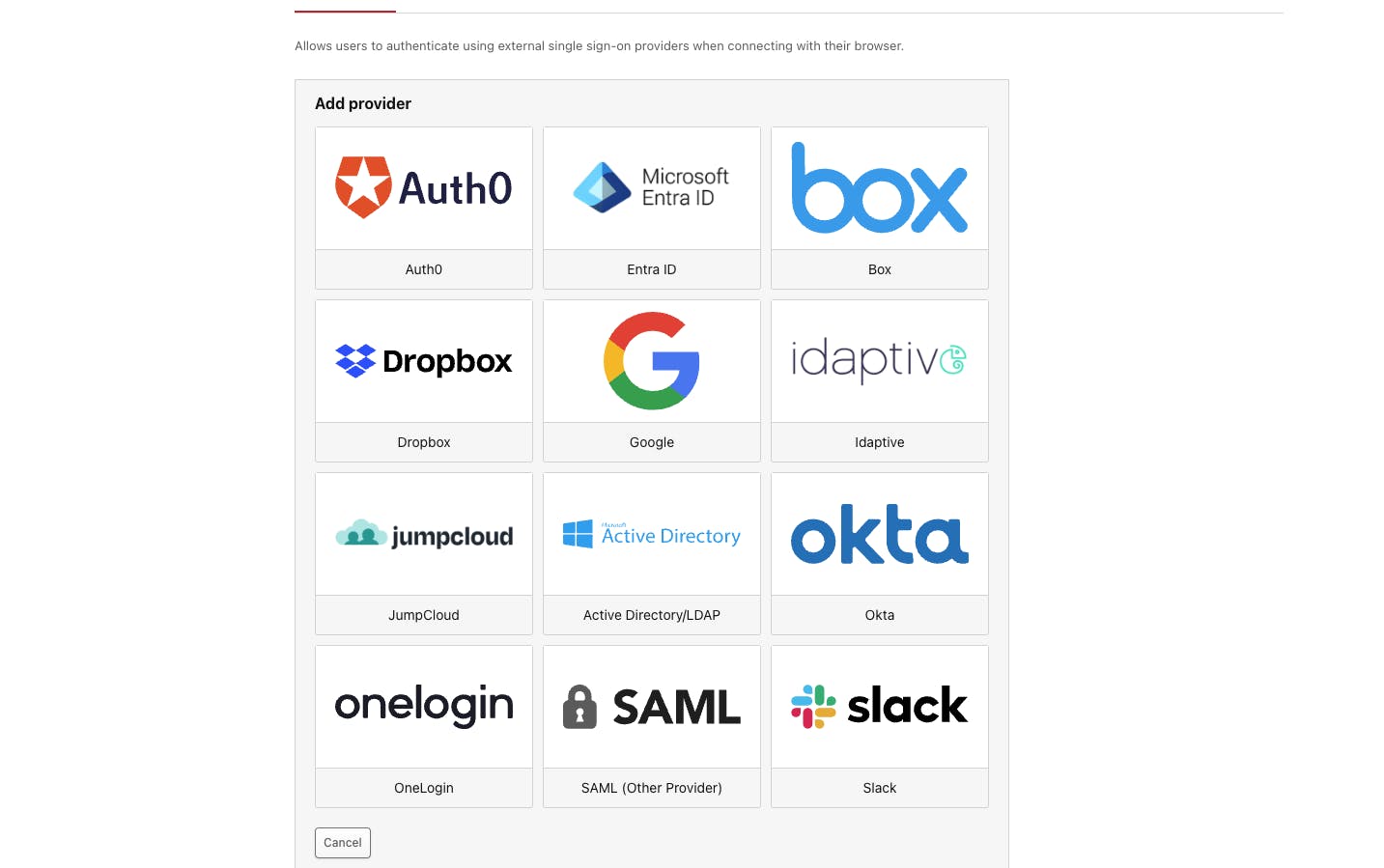
We're excited that Files.com supports a wide list of SSO providers, allowing enterprises to integrate their existing identity platforms for seamless authentication.
Files.com integrates with leading identity and authentication providers, including:
SSO options vary by Files.com subscription plan, so be sure to check our plan details to confirm which providers are included in your account.
Enabling Single Sign-On on your Files.com site is a straightforward process for administrators:
1 Navigate to the Integrations Tab In Your Files.com Site
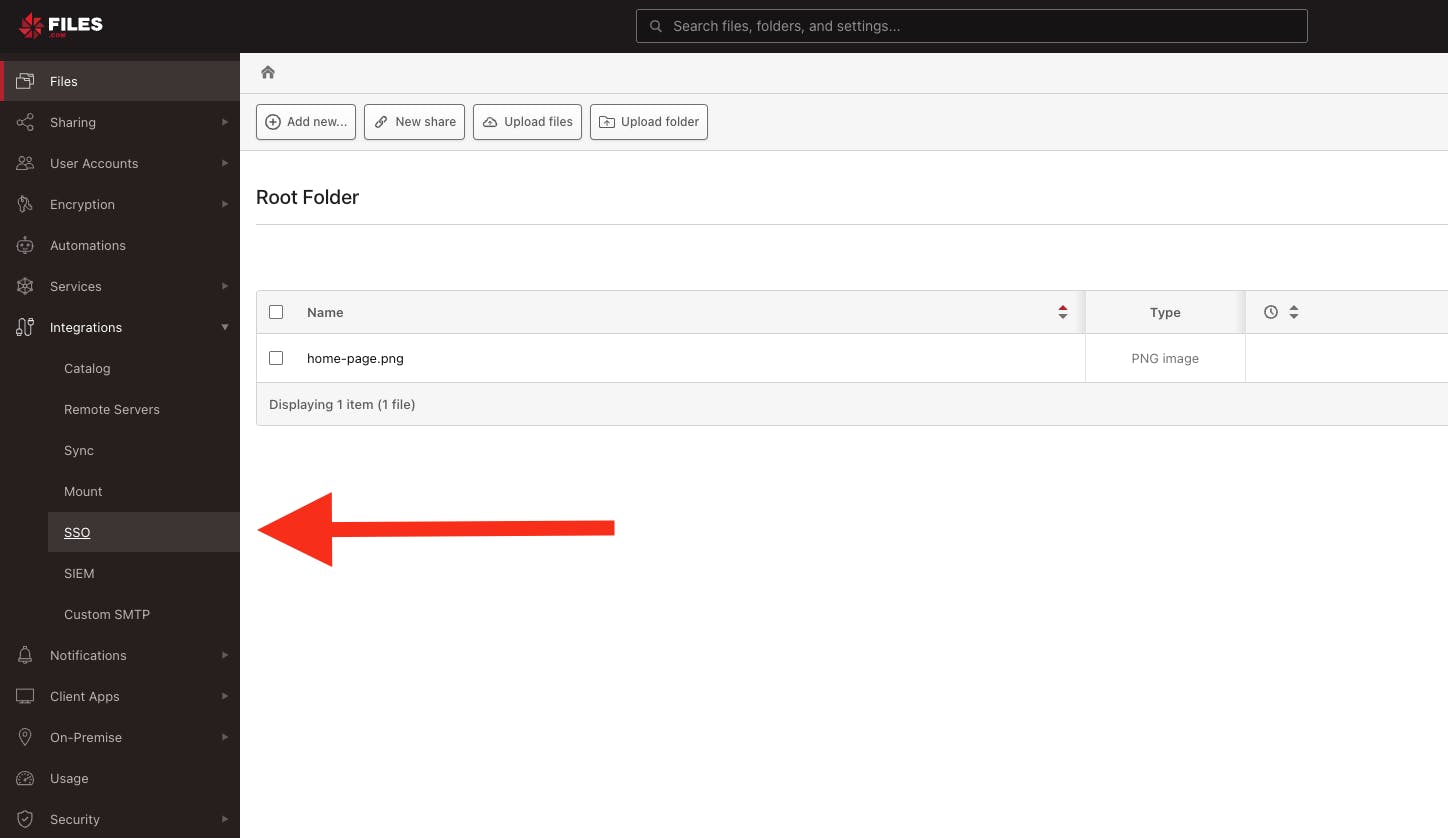
2 Select Your Identity Provider – Choose from the supported IdPs and verify compatibility with your Files.com subscription.
3 Configure Your IdP – Set up authentication rules, user permissions, and security policies within your identity provider.
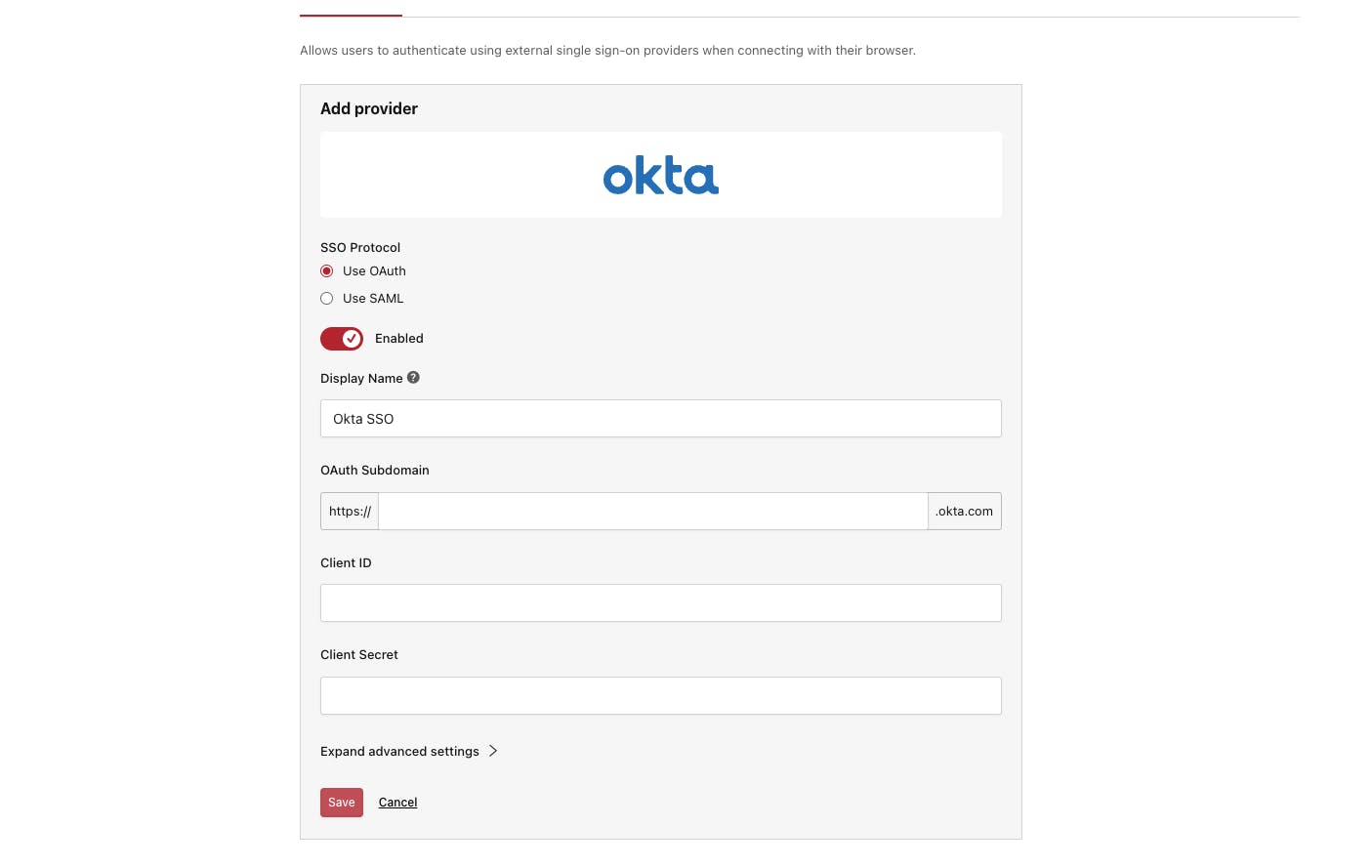
4 Save Your SSO Settings on Files.com – In just a few clicks, administrators can activate the selected SSO provider within the Files.com web interface.
5 Assign User Access – Grant SSO permissions to individual users or groups based on role-based policies.
For a detailed step-by-step guide, refer to our documentation center.
SSO authentication is supported for web-based sessions and the Files.com Desktop App, ensuring secure access across different platforms. However, due to protocol differences, FTP, SFTP, and WebDAV connections cannot authenticate via SSO. Users connecting through these methods must use either:
This ensures compatibility across different access methods while maintaining security best practices.
By integrating with industry-leading identity providers, Files.com empowers organizations to simplify authentication, strengthen security, and enhance user productivity. Whether managing thousands of users or securing sensitive data, SSO is an essential tool for modern IT environments.
To get started, check the Integrations tab in your Files.com site and click the SSO item.
Visit our blog for more resources, best practices and the latest Files.com news.
Files.com Workspaces give every team their own isolated environment with delegated administration, self-service operations, and centralized governance.
As we gear up for the Files Growth Summit, we've completed our IP Address transition, added more functionality to our Files.com Desktop App and to the Files.com Agent, and released several other new features.

Zip or Unzip archive files, use AWS Security Token Service (STS) with S3 Servers, connect to child sites in Desktop or Mobile apps, use REST API to upload or download in a single API call.
4,000+ organizations trust Files.com for mission-critical file operations. Start your free trial now and build your first flow in 60 seconds.
No credit card required • 7-day free trial • Setup in minutes