Send Files Out, Under Your Brand, On Your Terms
Hand someone a single link to one file, a stack of files, or a whole folder. They land on a branded page under your own domain, with no Files.com account and no Files.com logo. Put a password on it, set it to expire, or limit who can open it. Turn a folder into an always-on public download portal. Your recipients get one easy click, and Files.com gives you real control underneath.
The Easy Part Of Dropbox, The Control It Never Had
Sending a file to someone outside your company is one link and one click for them. That is also the problem. The link is easy to make, easy to forward, and impossible to take back. Nobody can tell you later who opened it. That is how a contract or a customer file ends up somewhere it should not.
Files.com keeps the one-link, one-click experience your recipients expect, and puts the controls your security team needs underneath: passwords, expirations, domain limits, a record of every link, and the ability to shut any of them off. So you get the easy sharing without giving up the ability to answer who opened a file. Everything renders under your own brand through custom branding.
Share links are also the browser path in client report delivery, for the recipient who will never install an SFTP client, in creative asset exchange, where proofs reach clients and printers as expiring links, and in software distribution, where a customer downloads the build from a site on your domain.
Controls You Can Put On Any Link
Turn on as many or as few as the situation calls for. A casual internal share stays simple; a contract going to outside counsel gets locked down.
Passwords And Single-Use Links
Put a password on a link, or make it work exactly once. The person you sent it to gets in; a forwarded copy doesn’t.
Expiration Dates
Set a link to stop working on a date you choose. A link you sent for a deal in March isn’t still open in September.
Restrict Who Can Open It
Allow only approved email domains, or block personal-email domains, so a link meant for a partner can’t be opened from a random Gmail address.
Preview-Only And Watermarks
Let people view a file in the browser without downloading it, and stamp each preview with the viewer’s identity so a leaked screenshot points back to who took it.
A Reason On Every Link
Require a short internal note on every share, so every link carries a record of why it was created. No guessing months later about what it was for.
See And Revoke Every Link
Admins see every active link across the whole account and can shut any of them off instantly. A link that has outlived its job doesn’t quietly stay open.
Publish A Whole Folder As A Public Portal
When you want files available to everyone, not sent one recipient at a time, point a public hosted folder at them.
Branded Download Portals
Turn a folder into a public, always-on download page under your own domain. It’s how you hand customers a release, a price list, or a media kit, without spinning up a website for it.
Static Hosting That Holds Up
Serve files straight from a folder as a public web address. Files.com ships its own desktop-app updates this way. The same hosting that delivers our software can deliver yours.
Whole-Folder ZIP Download
When you share many files or a full folder, the recipient grabs everything in one ZIP download instead of clicking through file by file.
Collect Files Back Through The Same Branded Door
Sharing out is half the job. Sometimes you need to collect files from people: documents from a client, paperwork from a new vendor, submissions from a campaign. A Files.com file inbox gives them a branded upload page with no account required, and every upload lands in the right folder ready for the next step. So nobody emails you an attachment you have to file by hand.
Share links send out, inboxes take in, and both run under your brand on your storage. Together they cover the whole two-way exchange with a partner, with no email attachments, no third-party portal, and no guessing who has access to what.
“The one-time file upload and download links make it easy to gather and share sensitive documents securely.”

How Teams Publish Files To The Public
Some files have to be reachable by anyone holding the link, with no account and no request behind it. Public hosting is how customers do that without a web server.
The QR Code That Never Goes Stale
A product sheet or a safety notice sits at a permanent public URL, printed on a shelf label or a sign, and replacing the file behind it updates every code already in the world. Reprinting is no longer the cost of correcting a PDF.
Signage And Devices That Cannot Log In
Display players in hundreds of locations pull HTML, images and daily performance pages from a public hosted folder, and staff are the only ones who can write to it.
Public Records Without A Web Project
An agency publishes hearing notices, datasets and response sets as links on its own website, hosted from a folder its records staff already manage, with no server to run and every download logged.
Field Staff Without Company Devices
Manuals, forms and media kits reach contractors and field workers through a branded download portal that needs no account, while upload stays limited to the people who own the content.
File Sharing Questions
What teams ask about sending files out, controlling who can open them, and keeping the data on their own storage.
Files.com share links need no account on the recipient’s side. The link lands them on a branded page under your own domain, with no Files.com logo and no signup. They click, they download or upload, and they never see Files.com at all. How to use share links for online collaboration covers the settings worth turning on.
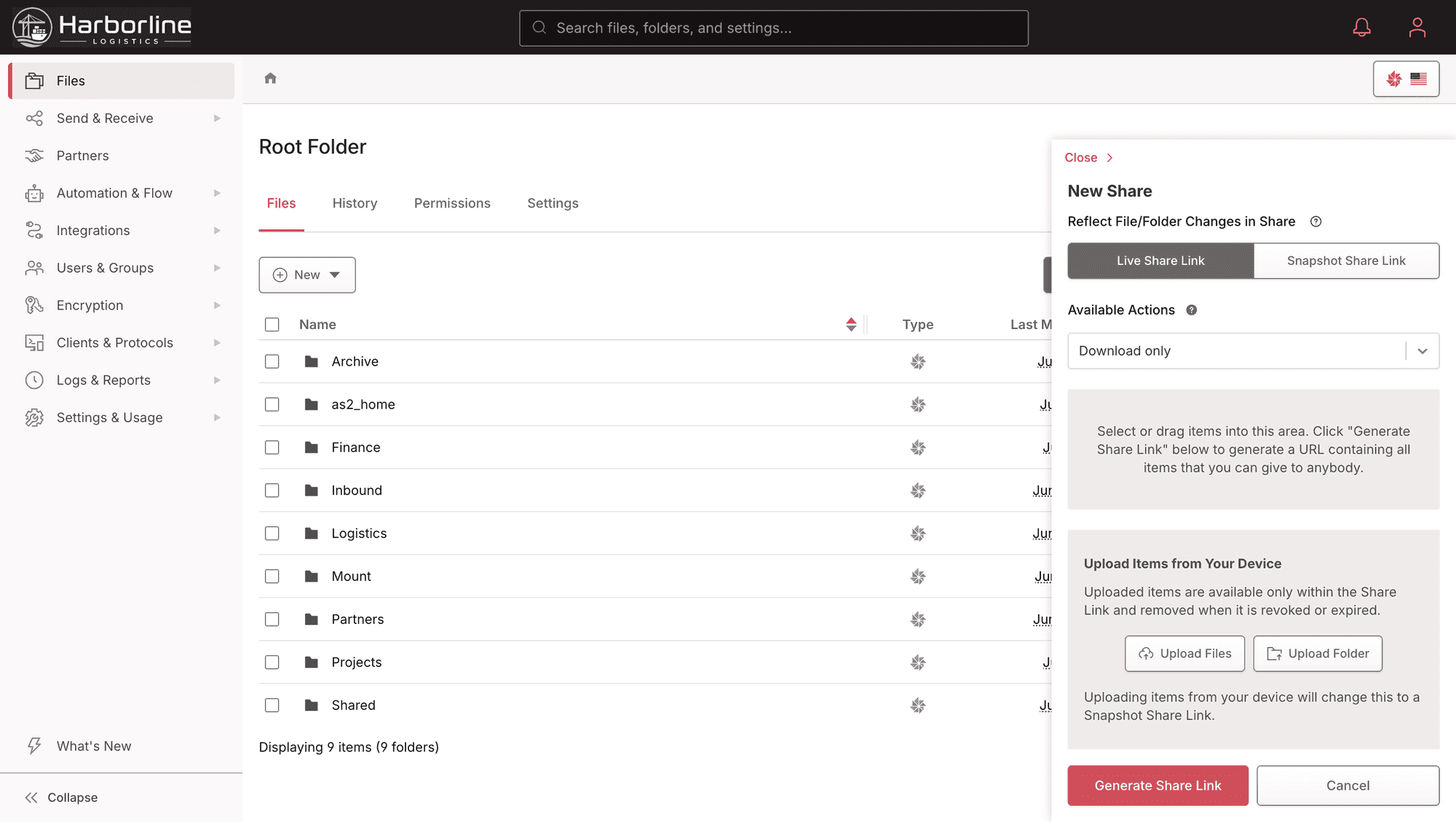
A live share link on Files.com always shows the current contents of the folder, so add or change a file and the recipient sees it on their next visit. That’s right for ongoing work. A snapshot link locks the contents at the moment you create it, so the recipient sees exactly what you sent on that date regardless of later edits. That’s the "this is what was delivered" record a regulated workflow needs.
A single Files.com share link can carry a two-way exchange: the recipient downloads your documents and uploads their response through the same link. It’s the pattern behind an RFP, a bid, or a vendor document exchange. The outside party returns to one page, so you’re not tracking a download link plus a separate upload request.
The data behind a Files.com share link lives wherever you want it: your own NAS, your S3 bucket, Azure Blob, Google Cloud Storage, or native Files.com storage. Your storage connects through remote servers, and sharing runs on top of it. The recipient gets a clean branded page, and the bytes never have to leave your chosen storage. The same pattern extends Google Drive for external sharing without moving anything out of Drive.
Files.com captures every link creation, every access, and every download in the unified audit log, and can stream them to your SIEM (the security tool your team already runs). You always know who shared what, who opened it, and when. The registration and access records for a link are retained even after it expires or is revoked, so the trail survives the link. That record is what turns secure file sharing for business from a habit into a control.
A Files.com Share Link can be owned by a Group rather than an individual user, so any member of the owning group can view, edit, or revoke it. That keeps shared mailboxes and team workflows running when someone is out, and ownership outlives any one person’s tenure. A site setting can default new links to the creator’s primary group automatically.
Every Files.com plan includes access-controlled share links and static web hosting. Link security settings like passwords, watermarking, and clickwrap agreements are on Power and above. See what each plan includes on the pricing page.
Turn on public hosting for the folder in Files.com. Every file in it gets a stable URL under your custom domain, the folder itself can render as a branded download portal, and staff update the contents through the same folder over the browser or SFTP. Downloads are logged, and nothing else on the site becomes public.
Yes. A publicly hosted file in Files.com keeps its URL as long as the path is unchanged, so uploading a new version under the same name updates what every printed QR code opens. A live share link works the same way for a file that is not fully public.
Yes. Public hosted folders serve HTML, images and video over plain HTTPS to any device that can fetch a URL, so unattended players and kiosks pull the current content with no credential to manage on the device.
Share A File In Under A Minute
Start your 7-day free trial, drop in a file, and send a branded link with a password and an expiration in the time it takes to write the email it replaces.
No credit card required • Free for 7 days • Live in minutes