Routing Connections Through the On-Premise Agent
The Files.com Agent connects your Files.com site to internal servers without VPNs, VPC peering, firewall openings, or network redesign. Use it when Files.com needs to reach private infrastructure that cannot be exposed to the public internet.
Traditional approaches to this problem rely on VPNs, VPC peering, private endpoints, or inbound firewall rules. These work, but they add network services and access rules to configure and maintain. Agent-routed connections remove those requirements. The Agent makes outbound connections only, so no inbound firewall ports are opened and no private networking constructs need to be managed.
How It Works
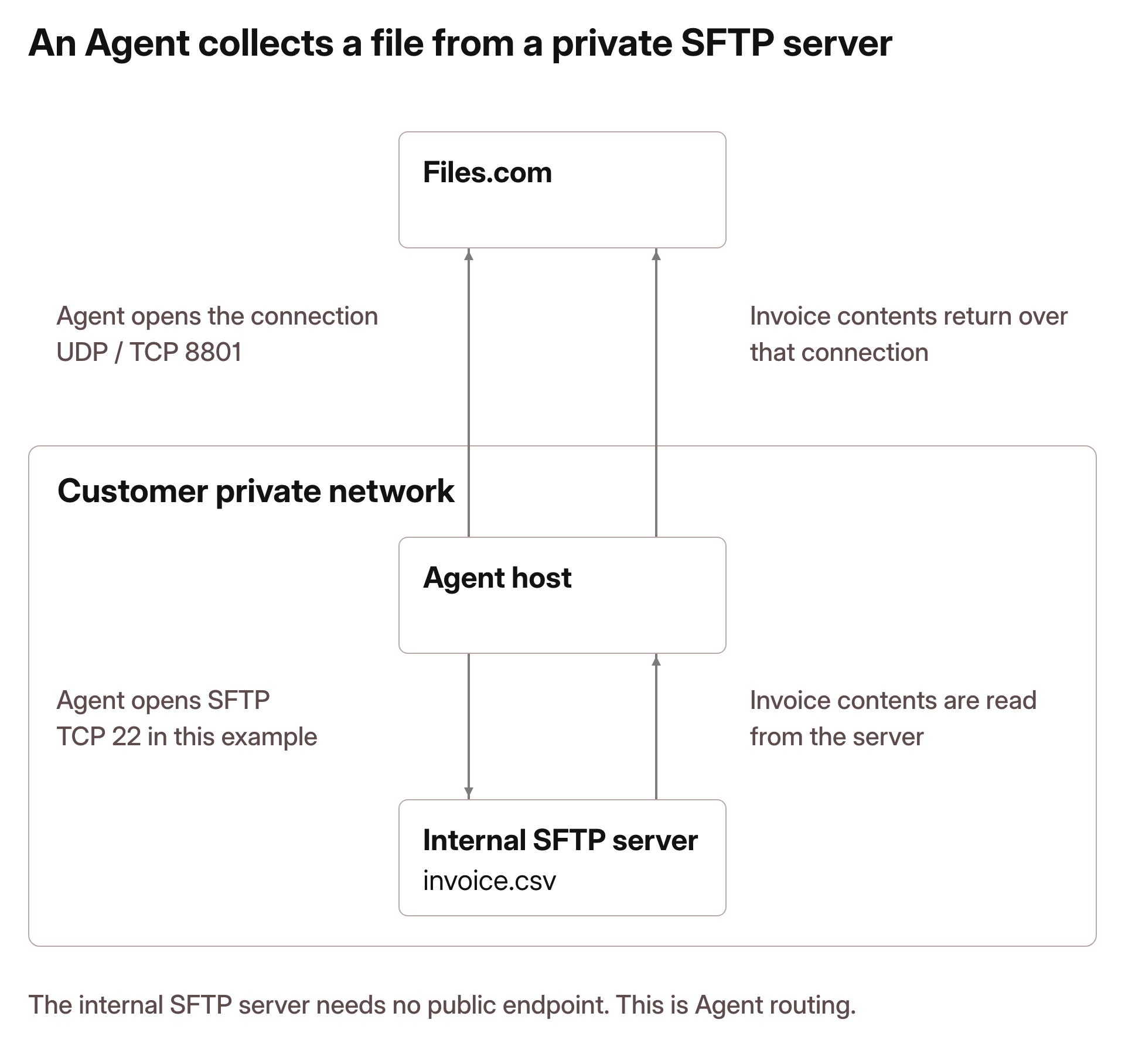
When Agent routing is enabled, the Files.com platform never connects directly to the internal server. Files.com sends operations over the connection the Agent established, and the Agent opens the session to the internal server. The internal server does not need a public IP address and does not accept inbound connections from the internet.
Users and Automations interact with the Remote Server the same way they do with any other integration. File transfers, directory listings, and metadata operations behave identically.
Supported Connection Types
These connection types can be routed through the Agent:
- SFTP
- FTP(S)
- WebDAV
- Akamai Linode
- Amazon S3
- Backblaze B2
- Cloudflare R2
- Filebase
- Google Cloud Storage
- Google Drive
- Microsoft Azure Blob
- Microsoft Azure Files
- S3 compatible storage
- Wasabi
To enable every supported routing type at once, edit the Agent configuration file and set integrations to ["all"].
Setting integrations to ["all"] expands the scope of what the Agent host can access. In most environments, we recommend specifying only the integrations required for your workflows, following the principle of least privilege.
After changing the configuration, restart the Agent so it advertises the updated routing support to your Files.com site. Until the Agent restarts, it continues running with the previous configuration and the new routing options are not available.
Eliminating Inbound Connections from the Internet
Agent-routed connections keep the internal server fully private. The server does not need a public endpoint. The Agent host initiates the connection to the server using the Remote Server’s configured credentials, within the access rules you set for your private network.
You retain full control over which internal systems the Agent can access. Authentication, encryption, and access controls remain unchanged, and Files.com never requires inbound access to your private network.