Which Files, And Where
Point an Expectation at a folder and a file pattern — your partner’s drop folder, only the *.csv files. That’s the set of files Files.com watches for.
Tell Files.com what a correct delivery looks like — which files, in which folder, by when, in what shape — and it watches every window, opening an incident the moment data is missing, late, or malformed. Most file tools only tell you when a transfer fails. They can’t see the partner feed that silently never arrives. Files.com can, because it starts from what was supposed to happen and treats its absence as the failure.
In most file-transfer systems, “failure” means an error code — a transfer threw a 500, a connection dropped, a job errored. By that narrow definition a flow keeps reporting “succeeding” right up until a partner’s nightly file quietly stops coming. There was no transfer, so there was no error, so nothing alerted. Someone finds out days later when a downstream pipeline breaks and has to trace it back to a file that never arrived at 2 AM.
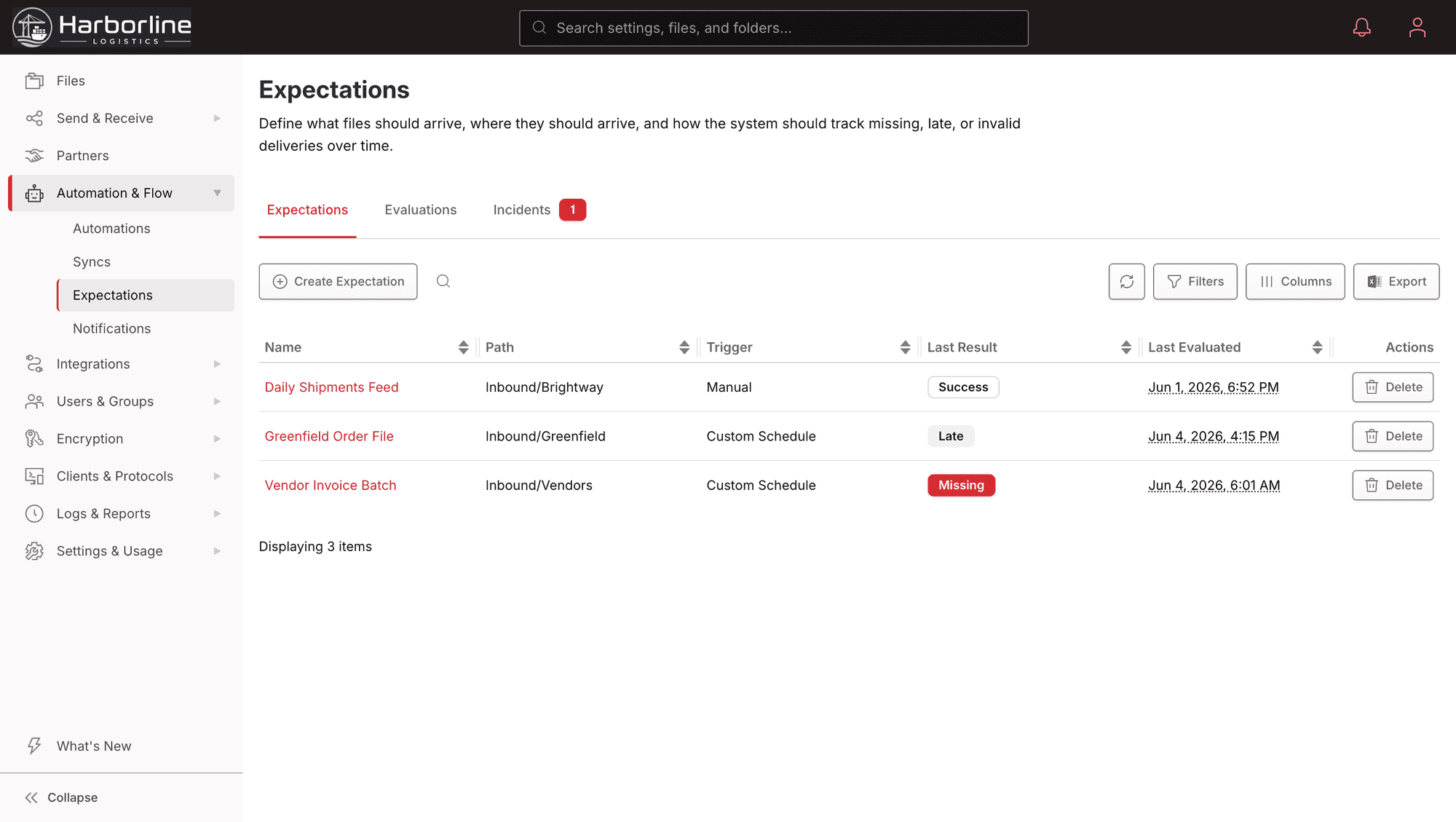
Files.com flips that around. A failure isn’t an error code. It’s the data you expected not showing up the way you expected it. This feature is called Expectations, and it lets you write down exactly what you expect: which files, from whom, by when, and what they should look like. Most file tools can only tell you a transfer technically completed. Files.com tells you whether the right thing actually happened.
An Expectation captures a recurring delivery in four plain parts — the files to watch, the deadline, the shape they must take, and how much lateness you’ll accept.
Point an Expectation at a folder and a file pattern — your partner’s drop folder, only the *.csv files. That’s the set of files Files.com watches for.
Set the deadline — the 06:00 feed, the hourly package, the monthly close on the 3rd. Files.com reasons from that deadline, so a 06:00 cutoff records as 06:00 even if the check runs a minute later.
Say what a correct delivery looks like: how many files, how big in total, which extensions, which named files must be present, what the file names must match, and which files must never appear.
Allow a grace window — accept the feed until 08:00 and mark it late rather than missing — and hold the window open a few extra minutes while a bursty multi-part upload is still arriving.
The right files arrived, on time, in the right shape. Files.com emits a durable “data is ready” signal that can kick off the next step — a downstream automation is now safe to run.
The deadline passed and nothing showed up. Files.com opens an incident and fires your failure alerts, so a vendor feed that silently stopped surfaces at 6 AM instead of when a downstream job breaks days later.
Files arrived but didn’t meet your criteria — too few, the wrong extension, a required file absent, a forbidden temp file present. You learn exactly which rule failed, not just that “the transfer completed.”
The data arrived valid, but after the deadline you promised. Files.com can tell you the deadline was missed and, separately, that the data is now ready — two different facts your downstream teams both need.
Every closed window keeps its evidence — the files that matched, the counts and bytes, and the exact criteria that passed or failed. An operator can see why a window passed or failed and which files were considered, instead of guessing. A missed deadline opens an incident you can acknowledge, snooze, comment on, and resolve, and it auto-resolves when a later window for the same feed comes through clean.
Together with the transfer engine’s integrity checks and the audit log, Expectations let you prove — not assume — that a critical file was delivered correctly and on time. That’s exactly the proof an auditor or a partner SLA asks for. See what each plan includes on the pricing page.
The same four checks show up wherever partners, custodians and agencies deliver on a schedule.
A check declares that the custodian’s positions file is due by six in the morning with at least one file over a minimum size, and the operations team hears about a miss while there is still time to call, not when the portfolio report is wrong.
A partner’s overnight batch is expected as forty files. The check confirms all forty, or names the missing sequence numbers, before the downstream job runs on a partial set. A short batch stops looking like a finished one.
Arrival events post to the channel the team watches and can trigger the next workflow step, so the morning ritual of opening folders to eyeball counts ends.
The monthly submission to a state agency or an air district goes through a logged folder with a delivery check on it, so the filing team can show which cycle arrived, when, and who touched the file.
What teams ask about catching missing, late, and malformed file deliveries before a downstream process fails.
Files.com file-delivery monitoring is a feature called Expectations: you define what a correct delivery looks like for a recurring file flow — which files, in which folder, by when, in what shape — and Files.com checks every window against that definition. When the data is missing, late, or malformed it opens an incident; when the delivery is correct it emits a data-ready signal.
A transfer alert tells you a transfer threw an error. Expectations tell you whether the right thing actually happened. A flow can report “succeeding” right up until a partner’s nightly file silently stops arriving — there was no transfer to fail. Expectations catch the absence of expected data, which a normal error alert never sees.
You can require a file count, a total size, allowed extensions, a filename pattern every file must match, and specific named files (each with its own size and count rules). You can also forbid files — say no *.tmp or *.partial may appear. The checks look at file metadata: names, sizes, counts, and extensions.
Yes, and precisely. Because Files.com knows exactly what you expected, it produces specific feedback — “your 06:00 feed was 40 minutes late and missing manifest.json” — instead of a vague “transfer failed.” That turns partner troubleshooting from a guessing game into a clear conversation.
Yes. Expectations check file metadata (names, sizes, counts, extensions, and which files are present or forbidden), and Expectations Content Validation reads inside the file: a Files TransformScript decides pass or fail against the parsed contents, with CSV, TSV, XLSX, XML, JSON, NDJSON, YAML, HL7, X12, and EDIFACT parsed automatically.
Yes. A failed window can trigger a failure automation or alert; a successful window emits a data-ready signal that can trigger downstream processing. Expectations watch and verify — they never move or change your files. They tell your automations and syncs when it’s safe to act.
Define the expectation on the folder in Files.com: which files, by when, how many and how large. When the window closes empty, Files.com raises the miss to email, Slack or Teams, or to a webhook that opens a ticket, and it holds the record of the miss for the audit. Holiday calendars keep a bank holiday from raising a false alarm.
Set the expected count and pattern on the folder. Files.com checks the arrivals against it and reports success only when the full set is present, so the downstream pull waits for a complete batch and a missing file is named rather than discovered later.
Deliver the filing through a Files.com folder synced to the agency’s SFTP endpoint, or through a share link if the agency accepts one, and put a delivery expectation on the outbound folder. The audit log records the file, the delivery time and who placed it, and the check records that each cycle went out on schedule.
Start a free trial, define what a correct delivery looks like, and let Files.com open an incident the moment a feed is missing, late, or malformed — and tell you the data is ready when it isn’t.
No credit card required • Free for 7 days • Live in minutes