Transfer Behavior
A Sync compares two locations and copies selected files from the source to the destination. The effect of that copy depends on replacement behavior, source cleanup, destination Folder Settings, and other processes using the same files. Review these together before allowing a Sync to remove source data or feed a consuming application.
Transfer Validation
Files.com performs integrity checks during Sync transfers to help detect incomplete or altered data. These include transfer-size comparisons and checksum validation where the Remote Server and protocol support them. The available checks depend on the connection; whole-file checksum comparisons are not available for every Remote Server.
File selection uses names and sizes rather than checksums. Transfer validation checks the files selected for copying; it does not establish that a producing application finished writing them or that a receiving application accepted their contents.
Replacing Existing Files
A Sync to or from a Remote Server transfers the replacement file as an upload. The upload replaces the destination file in place, so no separate delete appears in the logs. Some SFTP servers refuse to replace a file in place; for those servers, Sync deletes the existing file before writing the replacement.
A Sync with Files.com native storage on both sides deletes the existing destination file before copying the replacement. Files.com records that delete as a separate action in History Logs.
After Copying
After Copying controls whether the source retains files that are available at the destination. Choose keep when the originals must remain available at the source, or delete when the Sync should clear files from a pickup folder once the destination has a matching copy.
With delete selected, the Sync either transfers a file successfully and then deletes its source, or finds a file with the same name and size already at the destination and deletes the source without transferring it. Deletion is decided per file during the same run. The existing destination file counts as the copy regardless of who or what put it there, so the Sync can clear an already-delivered file without transferring it again.
This decision uses the same filename-and-size comparison that selects files for transfer. Matching names and sizes do not establish that two files have identical contents. Choose delete only when that comparison is sufficient for your workflow to remove the source, including when other people or processes write to the destination.
A source file stays in place if its transfer fails, if include or exclude patterns leave it out, or if the Sync skips it because of a case-insensitive name collision on either side. A matching destination file is a different result: with delete selected, Sync Logs record its source removal as Delete Source with the message File already exists on destination.
If you choose to delete, you can also Delete empty folders from the source when syncing. When syncing files from a source that creates uniquely named folders, we recommend enabling this feature so that your source folder does not accumulate unused empty folders. A Sync with this feature enabled deletes any folder it finds already empty on the source. It does not create that folder on the destination.
Folders emptied by source-file deletion stay on the source until a later run removes them, because each run works from the folder listings taken when it started, and a folder emptied during a run is only seen as empty by a run that comes after it.
Destination Folder Processing
A Sync delivering files into a Files.com folder follows that destination's Folder Settings. For example, an extension restriction accepts only incoming names that meet its rule. Through a Child Site, Connected Site, or Remote Server Mount, the destination's settings apply under the boundaries described in Sync Configuration.
GPG encryption, decryption, and recryption require After Copying set to delete. With keep, Sync skips files destined for those GPG settings. A rule that would rename an incoming file also causes that file to be skipped with keep. This prevents the changed output from looking like a missing or different file on every later run, repeatedly transferring the same input and increasing transfer usage without a useful result.
Choose source cleanup deliberately: delete can also remove an input when the destination already has the same name and size. Review GPG execution choices if the processing should instead be an explicit workflow step or a manual action.
Concurrent Access and Completed Files
Files.com can only respond to locks exposed by the Remote Server or its connection protocol. A lock held by an application may not be visible through that connection. An unreadable file can fail to transfer, while a readable file that is still being written can produce an incomplete copy.
A race condition occurs when the result depends on the order of overlapping operations on the same files. For example, a Sync lists incoming/report.csv, then an Automation moves that file before the Sync reads it. The Sync can no longer transfer the selected path. If the move happens before the folder is listed, that file is no longer part of the Sync's source selection.
Two jobs writing the same destination name can also compete to decide which contents remain there. This is a question of workflow order: a transfer check cannot decide which of two valid source files your business wants at that path. Give independent outputs distinct names or folders, and sequence dependent work by completion.
Have the producer finish in a working folder before making the file available in a pickup folder, or use a temporary name that the producer changes only after completion. Configure include and exclude patterns to select only completed files. You can also schedule transfers for a window when the files are no longer changing. A Remote Server Mount with an Automation still needs this coordination; changing the transfer mechanism does not make an unfinished file complete.
Coordinate every process that uses the same files, including other Syncs, Automations, mounted access, and applications on the remote system. In particular, a job that deletes or moves source files must run after every required consumer has finished with them. A later scheduled start leaves time between jobs but does not guarantee that an earlier job has completed.
Review Sync logs for the affected files and compare their activity with the other processes. If a completed transfer contains unexpected data or a selected file has no recorded outcome, contact Support with the run and file paths so the cause can be investigated.
End-Of-Sync Trigger Filename
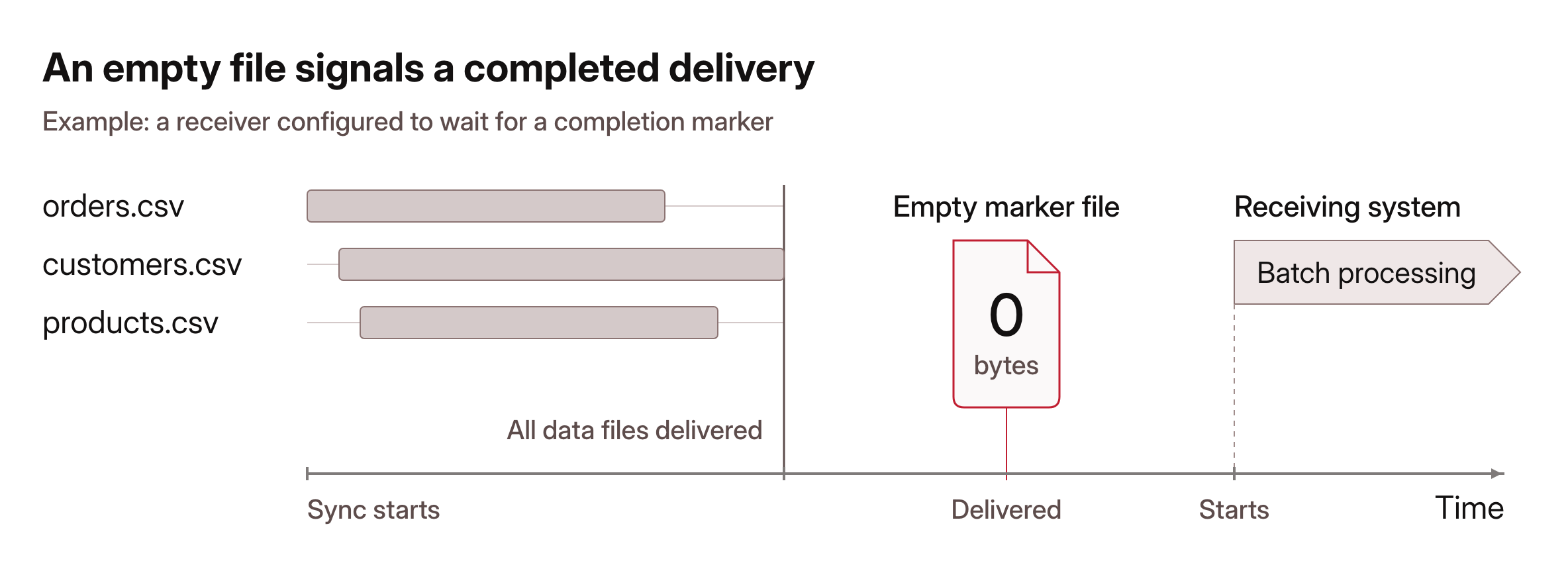
Some Managed File Transfer (MFT) services require delivery of an empty file, known as a trigger file, to signal that data transfer is complete and further processing can begin.
Specifying a Trigger filename enables delivery of a zero-byte file to the sync destination once the sync has successfully finished.
The trigger file is the last file delivered, after all other files have been transferred.
By default, the trigger file is only sent when the sync transfers at least one file. You can configure the sync to send the trigger file even when no files are transferred. Use the Always Write Trigger File option when downstream systems need to receive a signal regardless of whether any data moved.