GPG (PGP)
Files.com encrypts your files in transit and at rest by default. Sometimes counterparties or compliance requirements call for GPG or PGP encryption on top of that. Files.com supports two ways to apply GPG encryption or decryption:
- Folder-based (automatic): Configure a folder to automatically encrypt or decrypt every file that arrives. You can configure different folders to use different GPG keys, giving each folder its own encryption.
- On demand: Encrypt or decrypt a single file at any time without setting up a folder. Ad Hoc GPG Encrypt and Decrypt covers this approach.
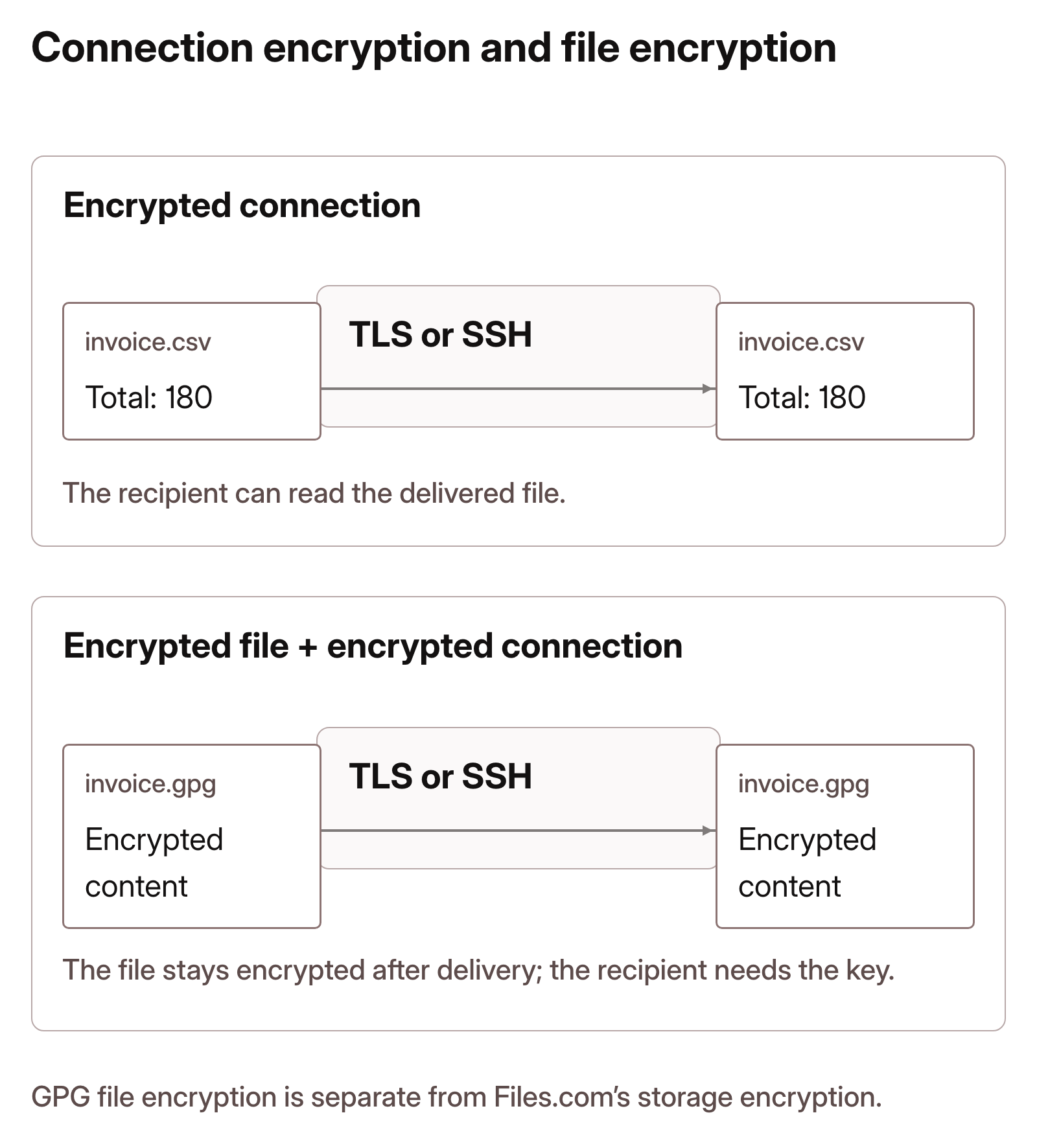
An encrypted connection protects a file while it travels between systems. GPG protects the file contents independently of that connection, so the delivered file remains unreadable until its recipient decrypts it with the matching private key. Agreeing to use an encrypted transfer protocol does not establish whether a partner also expects a GPG-encrypted file.
About GPG
GPG stands for GNU Privacy Guard, an independent implementation of PGP.
PGP, or Pretty Good Privacy, was originally developed as freeware under the GNU public license to allow the secure transfer of information with strong encryption. PGP was later turned into a proprietary program.
GPG is a publicly licensed project of the OpenGPG Alliance and is used interchangeably with PGP.
How GPG Encryption Works
GPG encryption is separate from the at-rest encryption that Files.com applies by default. It uses a public GPG key that you provide when enabling GPG encryption for a folder.
Once files are encrypted with your public key on upload, they can only be decrypted with the corresponding private key, which only you control. The files are unreadable to anyone (including Files.com) without that private key.
File Size Constraints
Files.com supports GPG encryption, decryption, and recryption on files up to 10 GB. GPG processing is CPU-intensive, so the file-size ceiling controls the processing capacity required for an individual job. It applies to folder-based processing, including buffered uploads to Remote Server Mounts, and to on-demand encryption and decryption.
GPG operations consume Transformation and AI Credits based on file size. If your workflow needs larger files, we welcome a conversation about raising the limit. Contact us with your expected file sizes, transfer volume, and processing schedule so we can assess and provision enough capacity for the workload.
Signing Constraints
Files that are both encrypted and signed are decrypted successfully, but no signature verification is performed.
Decryption uses the recipient's private key to recover the file contents. Verifying the sender's signature is a separate operation that requires the sender's trusted public key. Successful decryption therefore does not authenticate the sender. If your workflow requires that assurance, verify the signed file separately.
GPG on Remote Server Mounts
When GPG is enabled on a folder that uses a Remote Server Mount, Files.com uses buffered uploading rather than streaming the file directly to the remote server. The file is temporarily stored on Files.com, encrypted at rest using Files.com's standard storage encryption, processed by the applicable GPG encryption, decryption, or recryption rule, and then forwarded to the Remote Server.
The destination mount's GPG rules apply to uploads, copies, moves, and Syncs into it, including through a Child Site or Connected Site folder at _/Sites/<site-id> or a Partner Channel Route Path. The route used to reach the mount does not bypass its processing.
This store-and-forward process is required because GPG needs access to the complete file before processing it.
Buffered uploading cannot be disabled for GPG folders. It overrides the Buffered Upload setting of your Remote Server and is not reflected in the Remote Server's settings. If you use Remote Server Mounts specifically to prevent file data from residing on Files.com infrastructure then you should factor this in before enabling GPG on a mounted folder.
Exact Timing of Encryption and Decryption
GPG runs as a post-processing step after an upload. Copying a file into the folder also creates a new file there, so it triggers GPG encryption or decryption in the same way. This holds for copies made manually, by an Automation, or by a Sync action.
Moving or renaming a file in native Files.com storage relocates the existing file rather than creating a new copy to process, so it does not trigger GPG encryption or decryption. This holds whether the move or rename is performed manually or by an Automation. A move into a Remote Server Mount follows the destination mount's GPG processing.
A Sync configured to transfer files into the folder triggers GPG encryption and decryption just as if the files were uploaded manually.
When a file requires post-processing, it is first locked and quarantined as part of the upload process. The quarantined file is streamed into GPG, and encryption or decryption is applied on the fly as the output file is written to the destination folder. The original file is unavailable for any actions until post-processing is complete, after which it is deleted and purged.
The output of the GPG encryption or decryption appears as a newly created (uploaded) file in the destination folder and can trigger any Automations configured to fire when files are created.
Notifications, including email notifications, Slack notifications, and Webhooks, fire on the resulting output file of the GPG encryption or decryption.
The file appears in list requests through certain interfaces (FTP, SFTP, and some other integrations) during this state. Despite appearing in a list, the file is unavailable for any action other than delete until post-processing is complete.
Overwrite Behavior for Output Files
The output of an encryption or decryption does not overwrite an existing file. Instead, the new output file's name is appended with a date and time value to make it unique, so existing output files with matching names are preserved and no data is lost.
Monitoring GPG Job Outcomes
GPG encryption and decryption jobs produce Pending Work events in Event Channels. Subscribe to Pending Work events to get notified when a job succeeds, fails, partially fails, or is skipped. Admin email preferences also cover pending work failures.