Mounted Drive Mode
Mounted Drive Mode lets you access Files.com connections directly from Windows and macOS. When the Desktop App is launched, any configured connections set for mounting are automatically mounted. Multiple connections can be mounted at once, and new connections are set to auto-mount by default when created.
This mode gives you a native experience for browsing and editing Files.com content through File Explorer on Windows or Finder on macOS, similar to using a network drive. You can open and save files directly from applications including Microsoft Office or Adobe Creative Suite.
Under Manage Files.com Connections, use Show in Finder on macOS or Mount as Drive on Windows to choose whether a connection appears in your file browser.
How Mounted Drive Mode Works Across Windows and macOS
On Windows, mounted connections appear as mapped drives in Windows Explorer under This PC. The highest available drive letter is used when mounting a volume, and if no drive letters are available, the mount fails. You can configure a specific drive letter for each connection, but if that letter is already in use, the mount fails.
Mounted Drive Mode is available when installing the Desktop App using the EXE installer, and is not supported with the MSI installer. Windows mounting requires an additional filesystem component, which the EXE installer bundles with the application.
On macOS, the Desktop App uses Apple's File Provider framework to make Files.com available under Locations in Finder, with each connection shown as its own folder. You can browse files without downloading the entire connection. Opening a file downloads its contents when needed, and Finder shows download and upload progress. Files downloaded to your Mac can be used offline while their contents remain available locally.
Mounted Drive Mode is available when installing the Desktop App using the PKG or DMG installers.
If you're using Workspaces, you can switch between them using the Desktop App.
Working with Files in Mounted Drive Mode
In Mounted Drive Mode, you browse folders, open files, edit content, and save changes directly through your native file browser. Files transfer in the background, letting you work with them as if they were stored locally. When you open a file, it downloads if not already cached. When you save changes, the file uploads back to Files.com automatically.
If you need specific folders mounted to specific drive letters on Windows, your Site Administrator or Workspace Administrator can set up Desktop Configuration Profiles to define and enforce these mappings automatically.
Local File Caching
The Desktop App caches downloaded content to reduce repeated downloads. Its Caching settings control the app's cache: Enable File Cache turns it on or off, Maximum Size limits its disk usage, Maximum File Count limits the number of files, and Expiry controls how long unused cached content is retained. Older cached content is removed to make room when limits are reached. Removing a cached copy does not delete the file from Files.com.
On macOS, File Provider also manages the local files you access in Finder. The app's cache settings do not set a total storage limit for the Files.com location in Finder or guarantee that particular files remain available offline. Check offline availability before working without a connection.
Empty Files
On Windows, the Desktop App does not upload empty files. Creating an empty file in a mounted folder, from the New menu in Windows Explorer for example, leaves it on your computer. Copying or moving an empty file into the folder does the same. Explorer keeps showing the file while the Desktop App is running, and it uploads the first time you save content into it.
On macOS, empty files upload like any other file.
File Locking Behavior in Mounted Drive Mode
Files.com uses file locks to protect business document files that are opened for editing. This locking behavior applies when editing these documents through the Desktop App Mounted Drive, the Files.com online editor, or Office for the web, and applies only to business document files including Word, Excel, and PowerPoint files.
When a Word, Excel, or PowerPoint document opens for editing from a Mounted Drive using the corresponding desktop application, the Files.com Desktop App requests a lock for the file. If no one else is editing the file, the lock is granted and the file opens for editing.
If another user or editing session already has the file open, the application opens the file in read-only mode. This prevents multiple users from editing the same file at the same time and causing conflicting changes or accidental overwrites.
For example, if one user opens a Word, Excel, or PowerPoint document from a Mounted Drive using a desktop editing application and another user tries to open the same document for editing from another Mounted Drive or the Files.com online editor, the second user will see the file open in read-only mode.
If you make changes while the file is open in read-only mode, the application prompts you to save the file with a different name or in a different location. The application does not allow saving changes to the original file while another editing session holds the lock.
The lock is released when the user closes the file in the editing application that opened it. If the lock is not released, it expires when its timeout passes. The default timeout is 12 hours, and an application can renew the lock while it remains in use.
File locking does not apply in Turbo Transfer Mode because Turbo Transfer Mode is used to transfer files, while Mounted Drive Mode allows files to be opened and edited directly.
Offline Access (macOS Only)
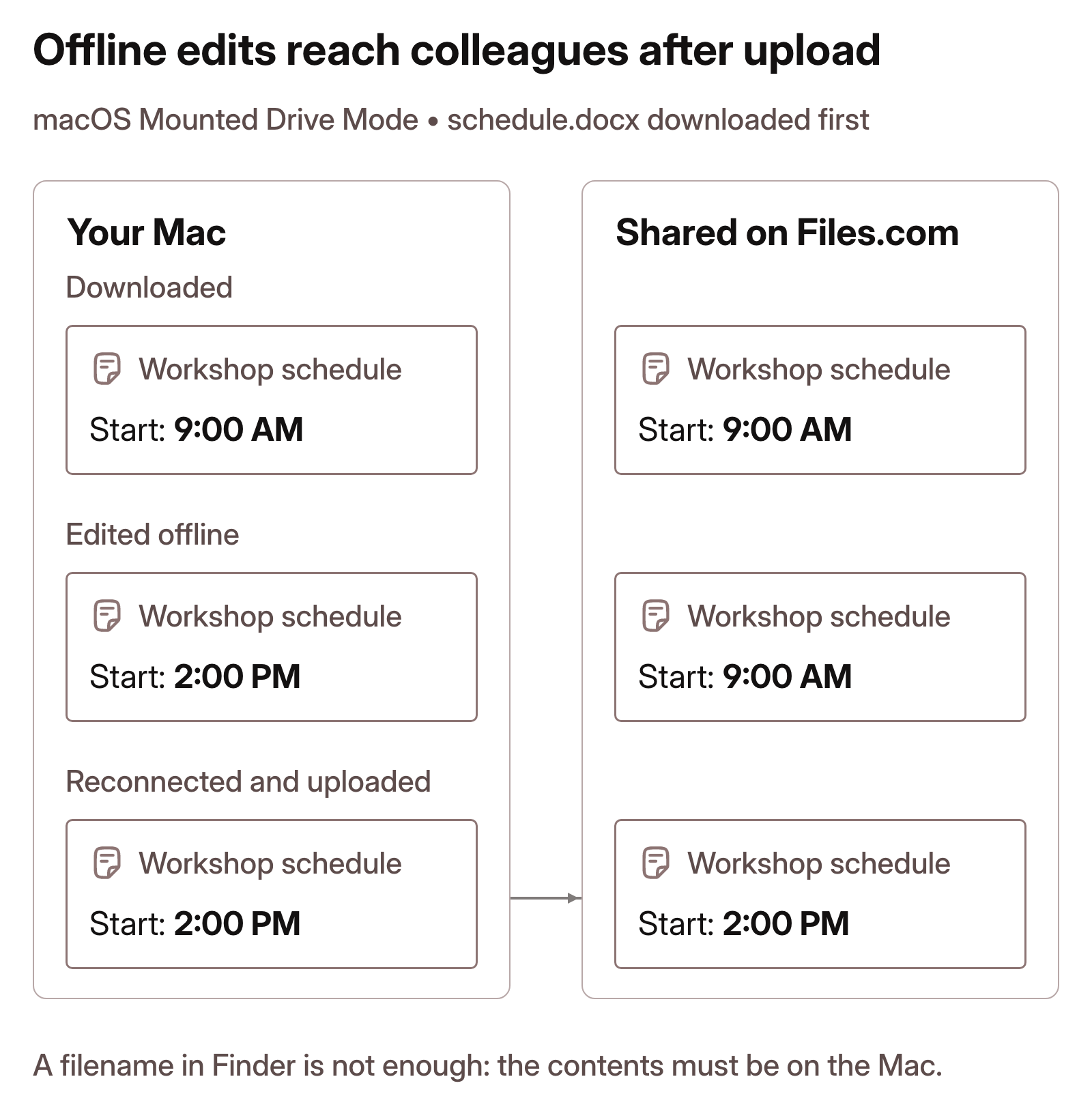
Offline access lets you continue working during a flight or an interruption to your internet connection. Before going offline, right-click the files or folders you need in Finder and select Download Now. Check that the downloads have completed before disconnecting. Seeing a filename in Finder does not mean its contents are on your Mac.
While offline, you can open, edit, and save files whose contents are available locally. Files that still need to be downloaded require an internet connection. Saved changes upload to Files.com when you reconnect, and changes made elsewhere synchronize through Finder.
macOS can remove local downloaded copies when it needs disk space, keeping the files on Files.com available to download again. Check Finder's download status before relying on a file for offline work.
Creating Share Links
Right-clicking a file or folder in a mounted drive also offers Create Share Link, which builds a Share Link for it without the need to open the web app. Creating one requires sharing permission on the folder. The Creating Share Links from the Desktop App page covers this feature in more detail.
Managing macOS Finder Integration
macOS requires your approval to enable the Files.com File Provider extension. When prompted, select Enable in Finder's banner for the Files.com location. You can also enable Files.com under System Settings > General > Login Items & Extensions > File Providers. Apple's Login Items & Extensions guide explains where these controls appear.
The Desktop App's Preferences > Advanced > Finder Integration panel shows the integration's status. Select Refresh to check that status again. If Files.com is missing from Finder or stops updating after approval, see macOS Desktop App Troubleshooting.
Multiple Concurrent Users (Windows Only)
The Desktop App supports multiple user sessions on the same Windows machine. Each user authenticates with their own Files.com credentials and gets their own mounted drive, limited to what their permissions allow.
This applies to these environments.
- Windows Server running Remote Desktop Services (RDS), where multiple users connect remotely at the same time, each in an isolated session.
- Windows 10/11 with Fast User Switching, where multiple local accounts share one machine and switch between sessions without logging out.
- Shared kiosk machines, where a single machine is used by multiple employees in sequence, common in warehouses, factory floors, airport counters, reception desks, and retail environments.
By default, mounting a drive also registers a UNC network share path (\\Files\<name>) alongside the drive letter. Only the Windows user who mounted the drive can list that path or open and write the files in it. Files.com permissions still apply. Some applications, such as Adobe applications, find and use the network path behind a drive letter when they open and save files. These applications keep working for the user who mounted the drive. IT administrators can disable this registration.