Daily, Weekly, Monthly, Or Yearly
Pick how often a job runs — daily, weekly, monthly, quarterly, or yearly. Then set the exact time it fires and the time zone it runs in, so an overnight batch fires at midnight in your zone, not a server’s.
Run your file jobs on the clock — nightly exports, hourly imports, off-peak syncs — without standing up a separate workload-automation product alongside Files.com. No Control-M license to renew, no Autosys agent to patch on every host, no cron tab nobody owns. Set a schedule from a normal time picker, and your transfers run with retries, alerts, and a full audit trail behind them.
Most teams ended up with a separate workload-automation tool — Control-M, Autosys, or a pile of cron tabs — for one real reason: their file transfer system couldn’t run jobs on a reliable schedule by itself. So a second product got bought, licensed, and patched just to fire the nightly batch. Files.com folds that job back into the platform that’s already moving your files.
You point Files.com at the work — a copy, a move, an import, a sync to another server or cloud — and set when it runs. It fires on schedule, retries if a backend hiccups, and tells you if something goes wrong. Scheduling is part of Automations, so a timed job gets the same retries, conditions, and logging as a job that fires off a file event.
Fixed intervals, exact custom times, off-peak windows, and holiday handling — set from time pickers in the app, no cron syntax required.
Pick how often a job runs — daily, weekly, monthly, quarterly, or yearly. Then set the exact time it fires and the time zone it runs in, so an overnight batch fires at midnight in your zone, not a server’s.
Need it more specific? Pick the exact weekdays and times of day, and run it several times a day if you have to. No cron syntax to memorize. You set it all from a normal time picker.
Give a job a time range — say 01:00 to 05:00 — and it runs once an hour inside that window. The standard way to keep heavy transfers off your network during business hours.
Turn on holiday handling for a region and a schedule quietly skips its observed holidays. Useful for jobs that shouldn’t fire on a partner’s national holiday.
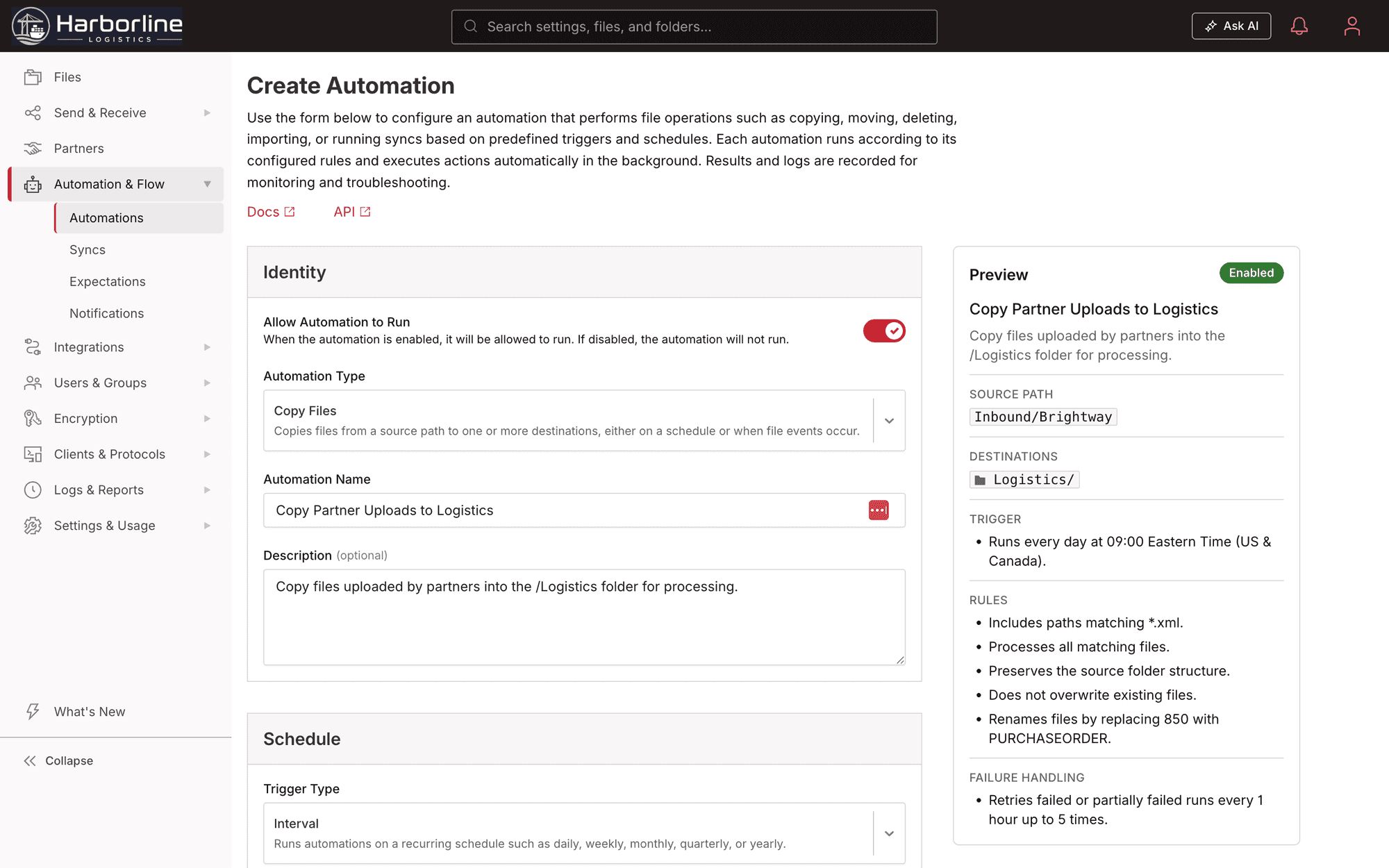
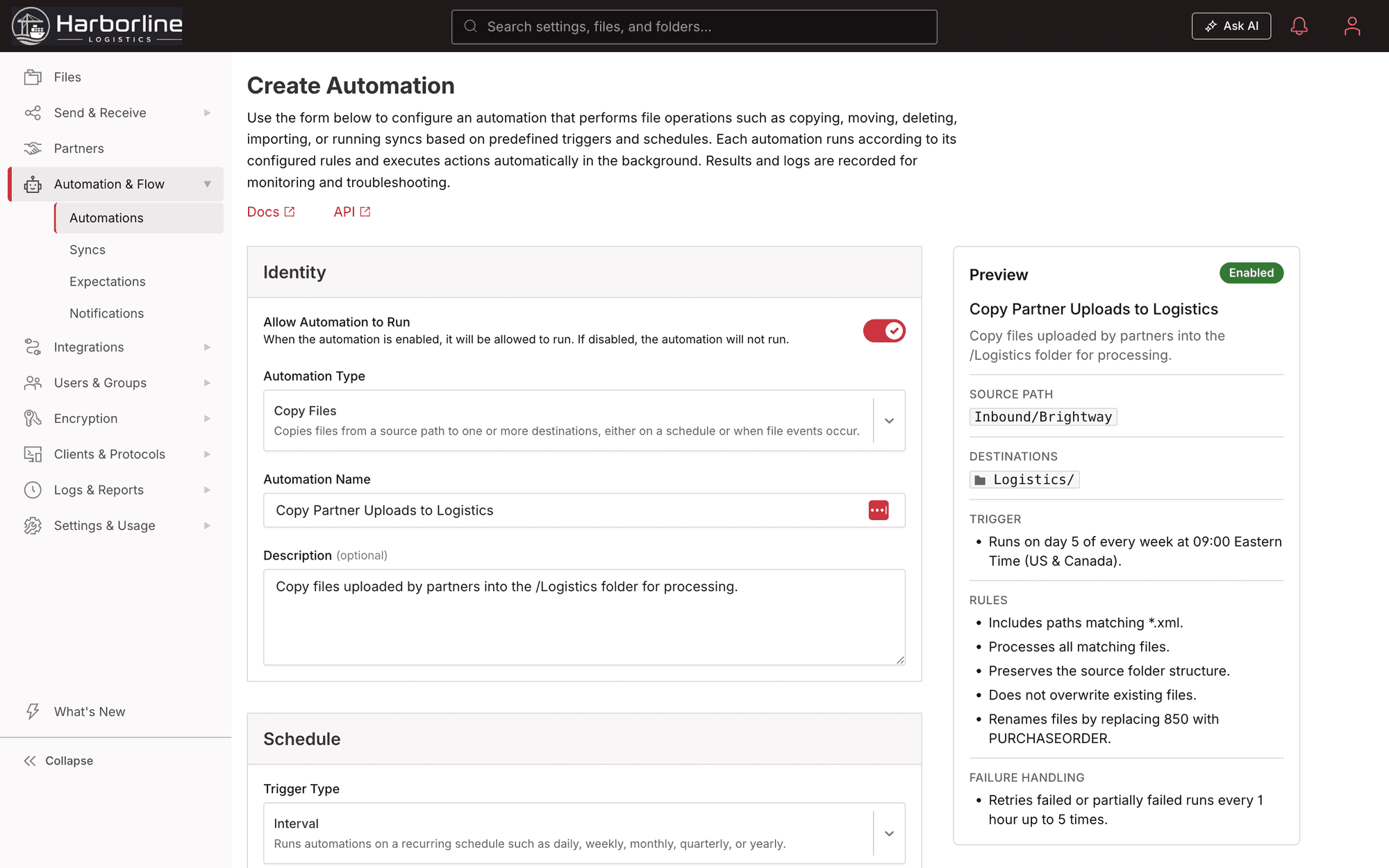
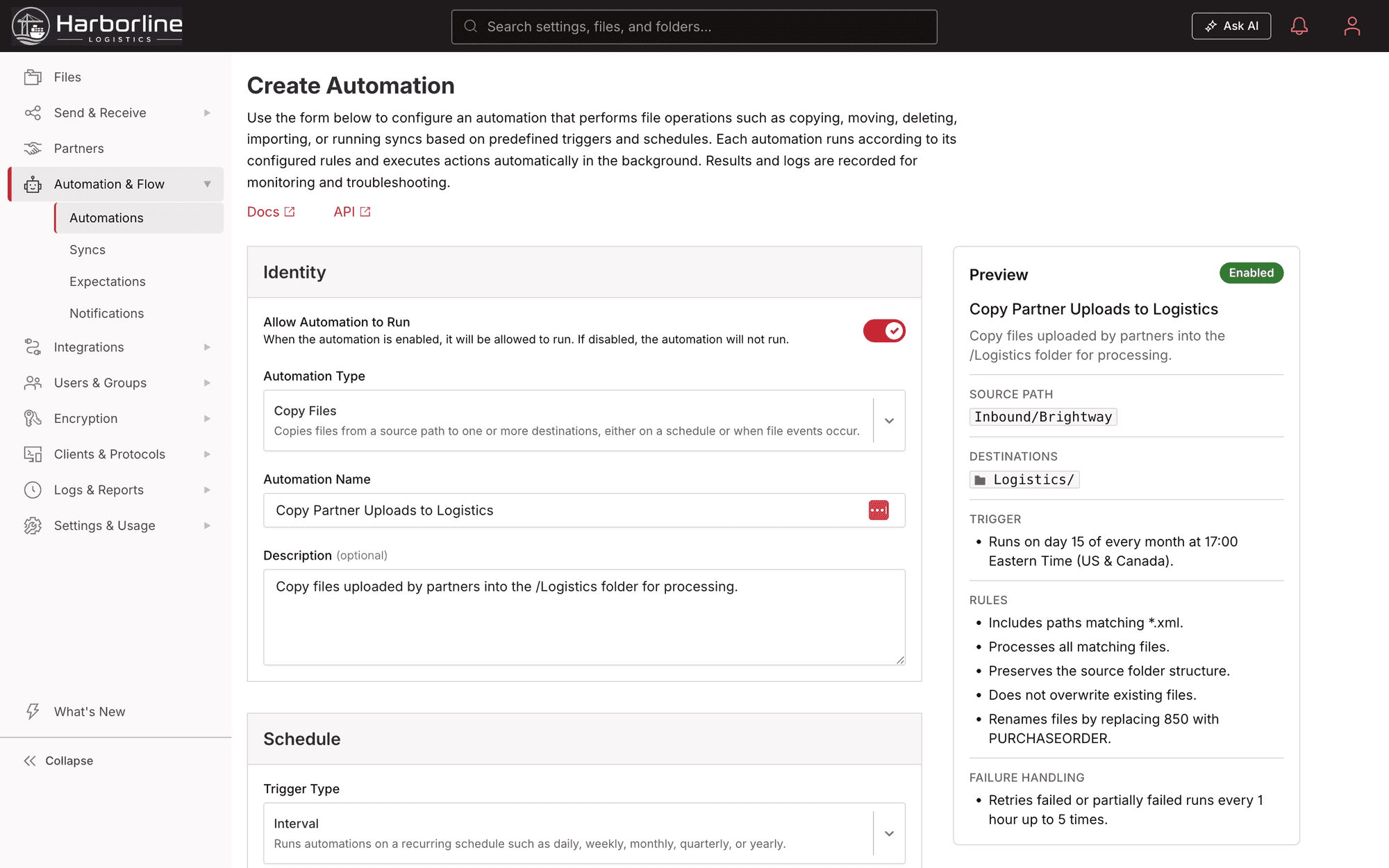
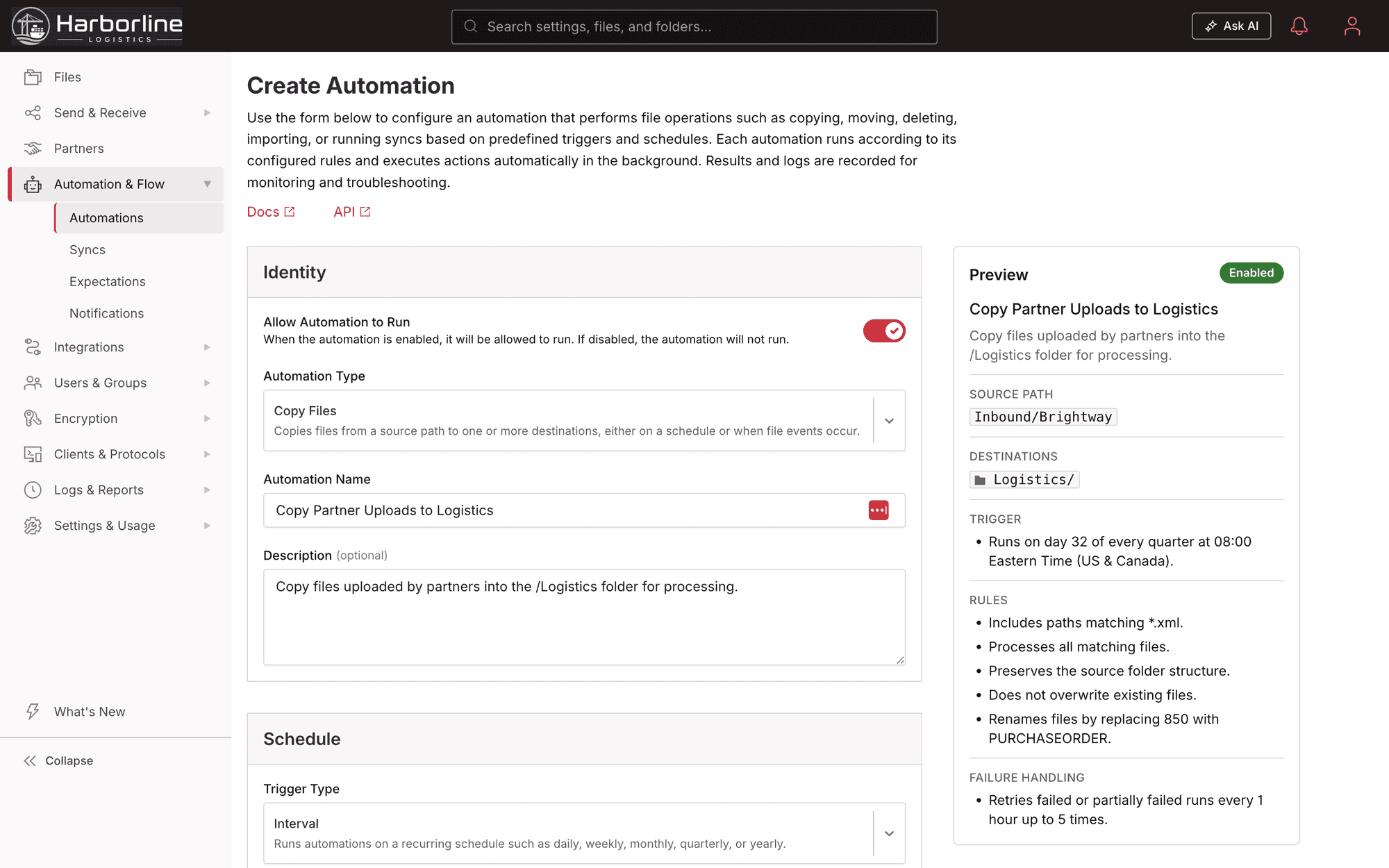
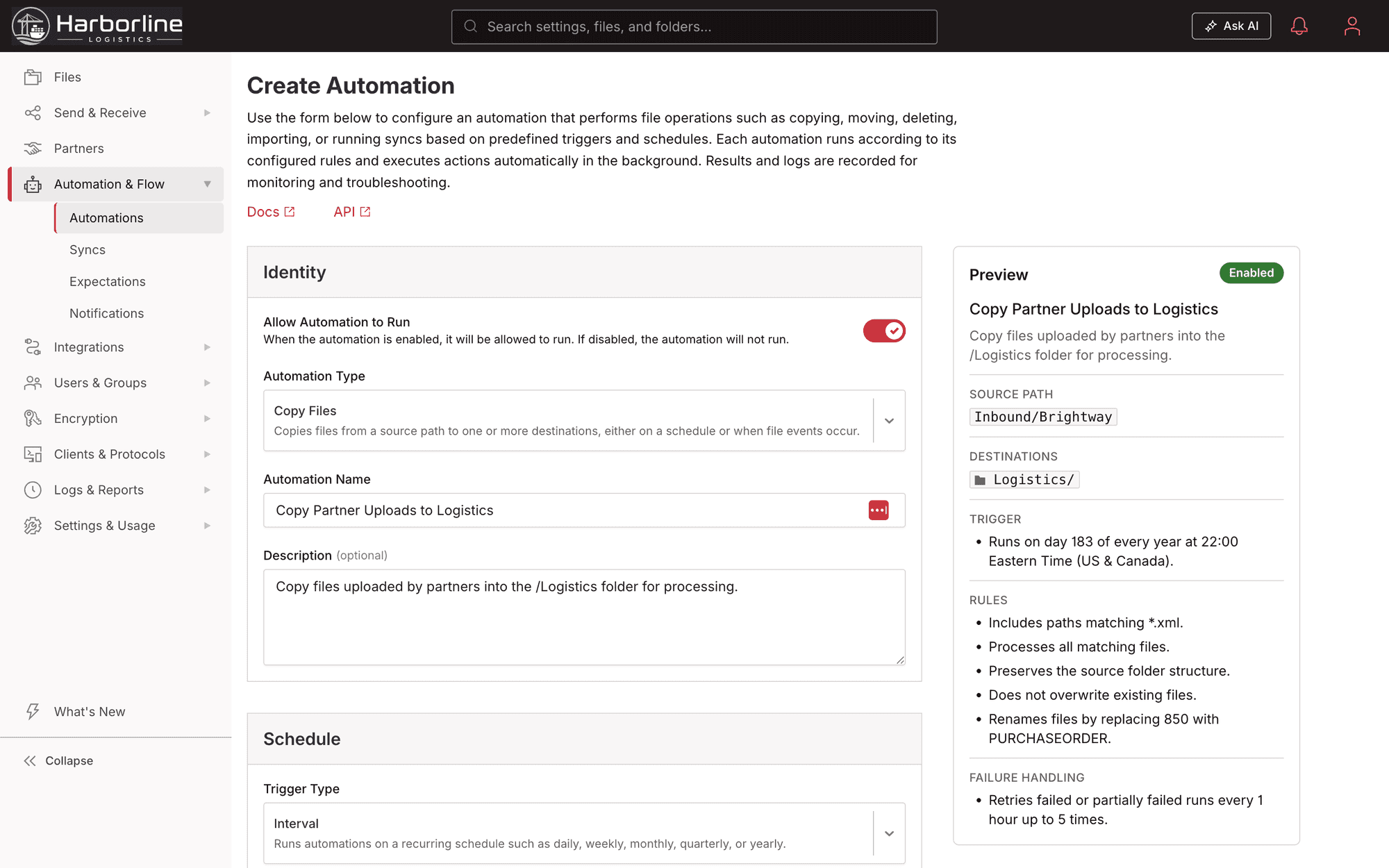
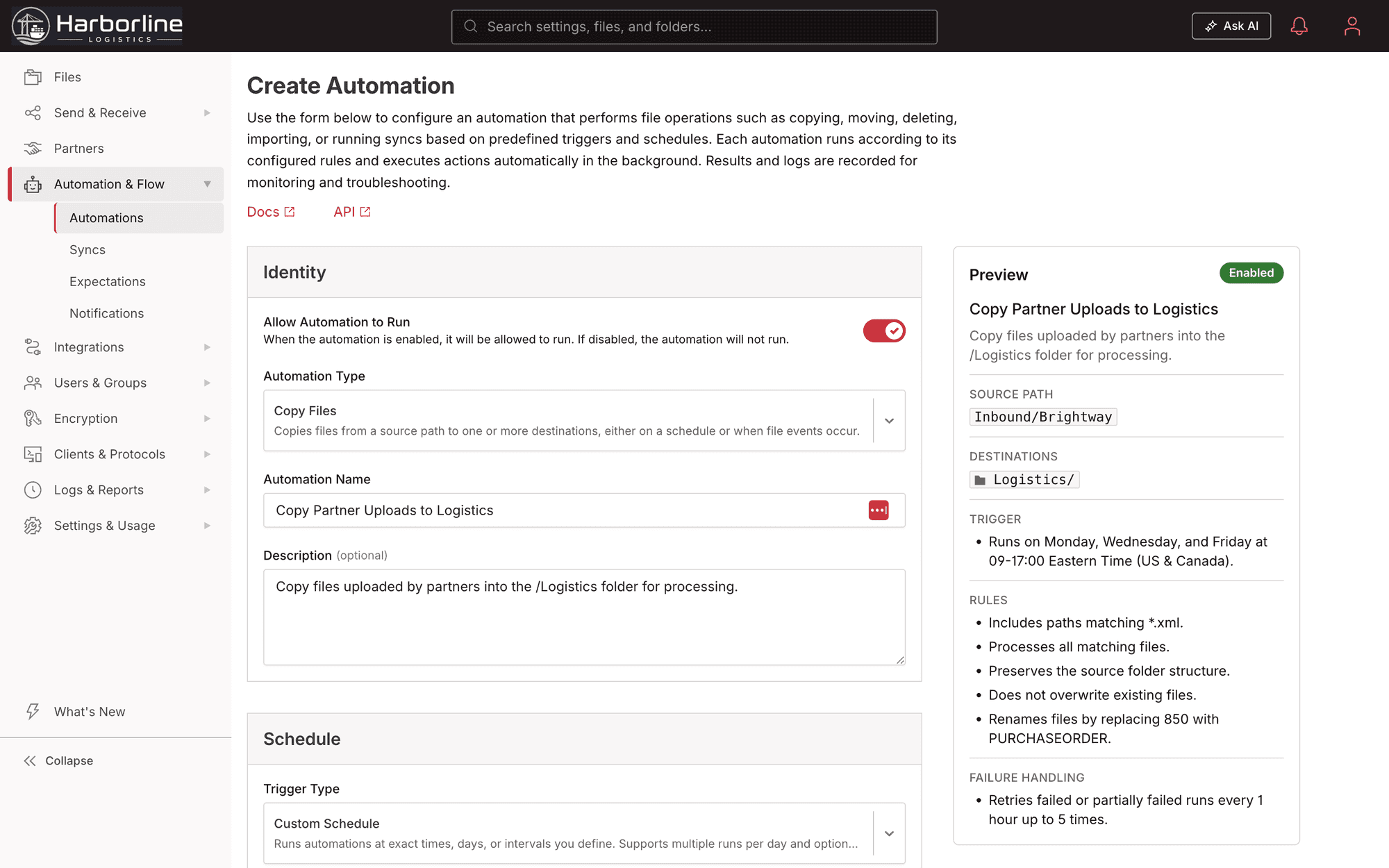
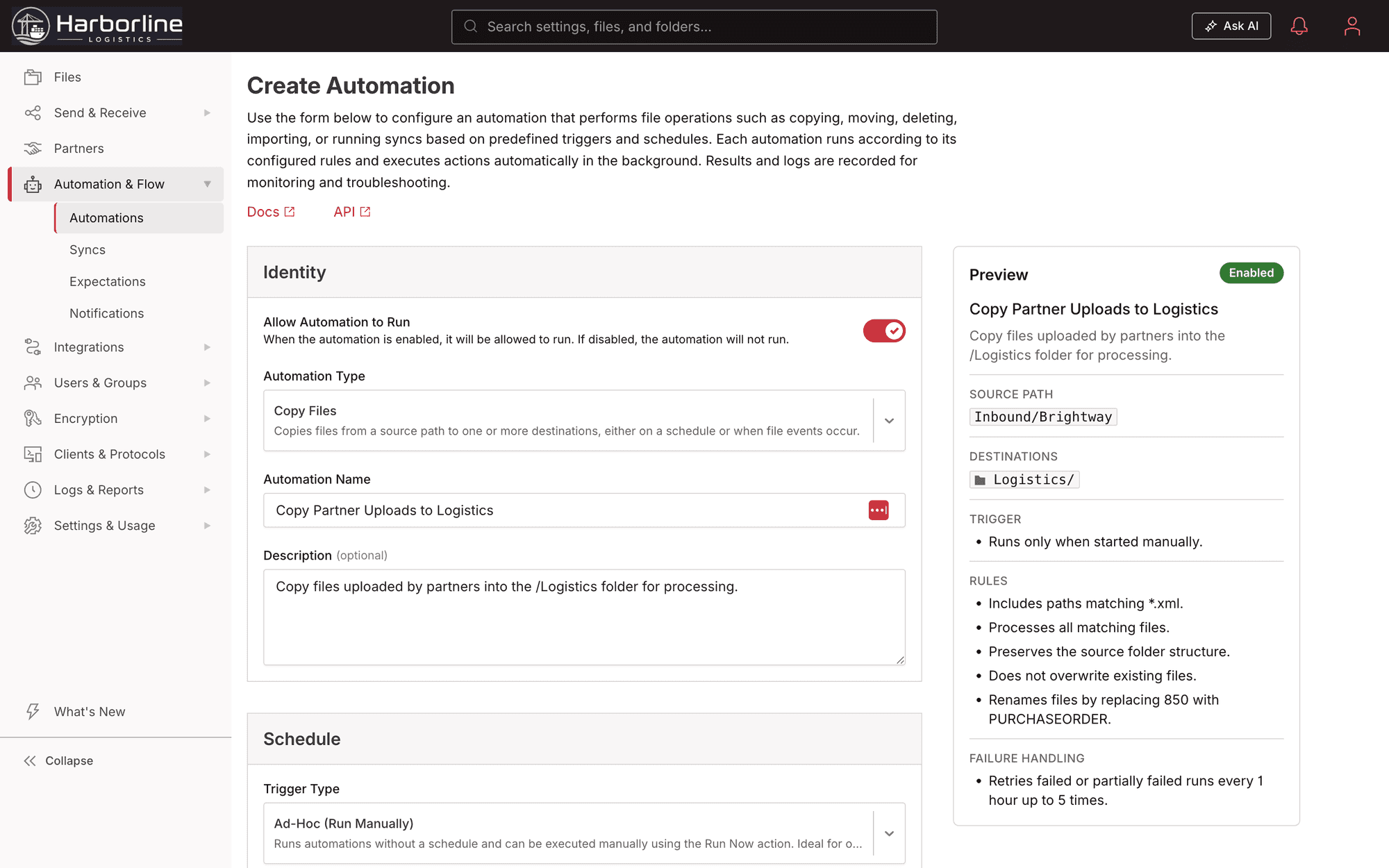
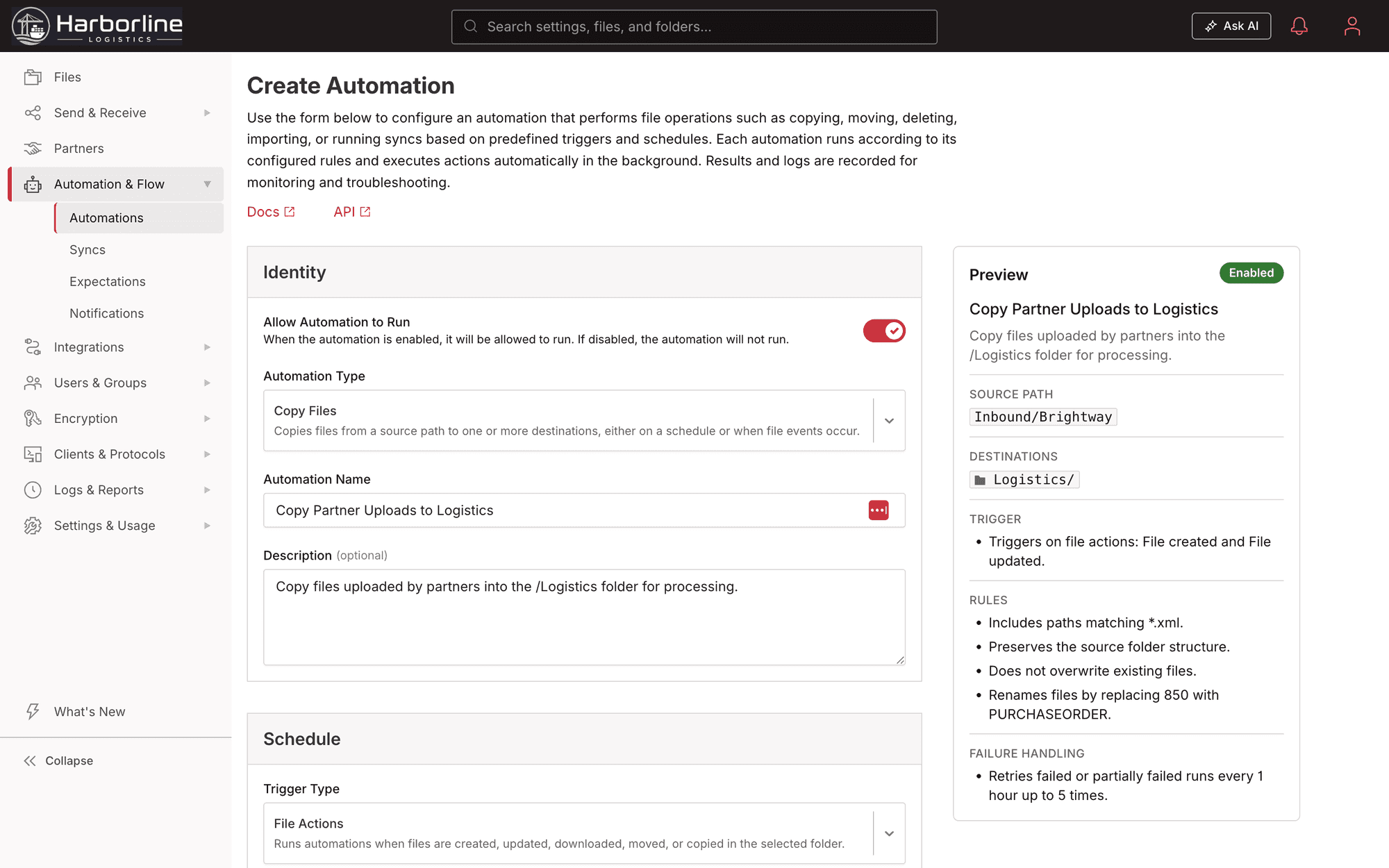
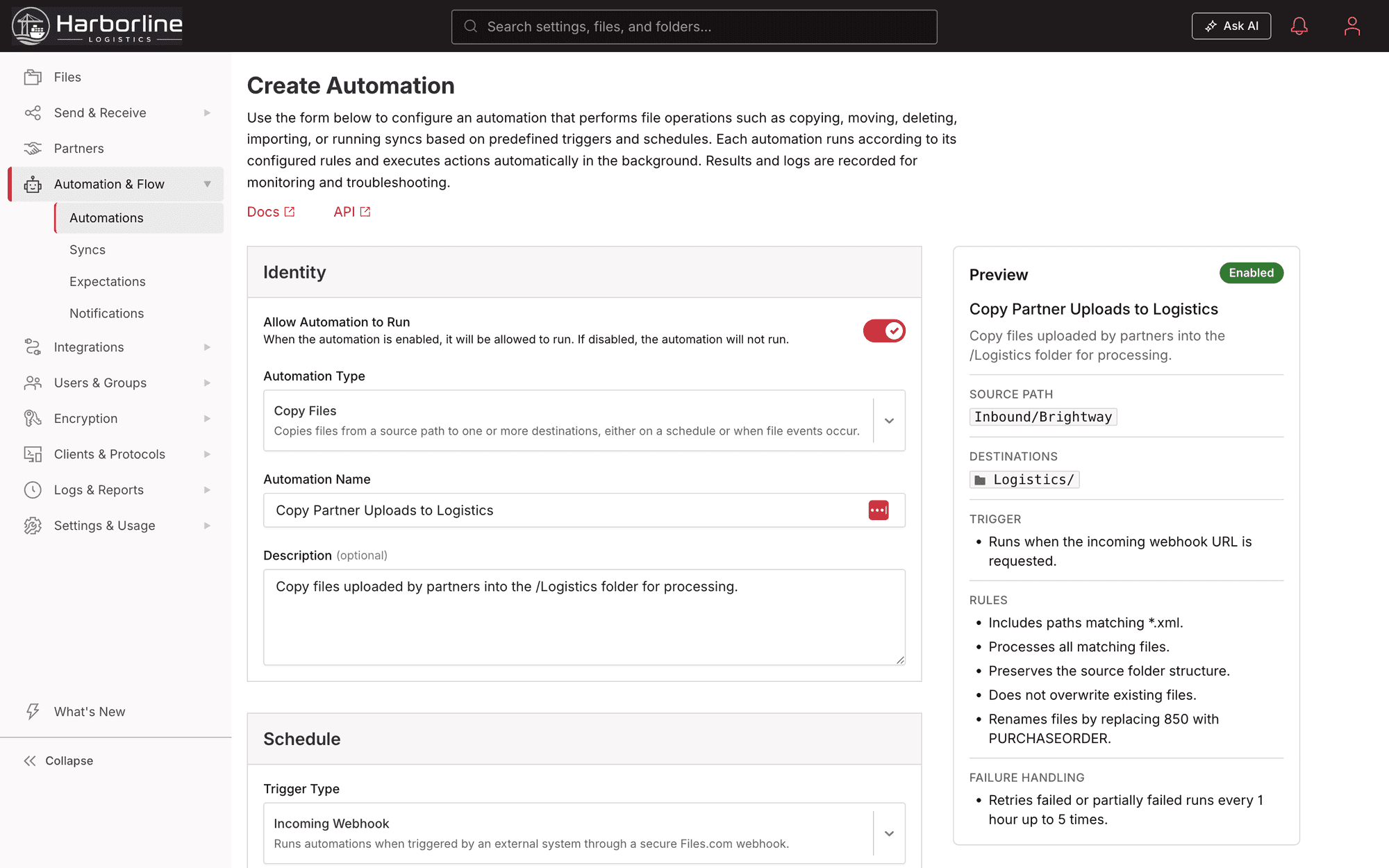
Runs every day at a time and time zone you pick.
When a run hits a transient failure — a network blip, a backend that’s briefly unreachable — Files.com retries automatically, waiting longer between each attempt instead of hammering a system that’s already struggling.
A scheduled job can check before it acts — whether a file is actually present, how old it is, what it contains — and only do the work when the conditions are right.
Turn on notifications and the right people hear when a run finishes, when it fails, or both — so a missed overnight job surfaces at 6 AM, not when someone notices the data never showed up.
Every scheduled run lands in the audit log with its start time, end time, the files it touched, whether it succeeded, and any retries — the proof a review or an auditor asks for.
One scheduling model runs across every automation action — Copy, Move, Delete, Import, Run Sync, Request File, and Request Move — so a nightly partner export, an hourly off-peak import, and a monthly archive run all configure the same way. Scheduled jobs run on the same infrastructure as the rest of the platform, with the 99.9% uptime and automatic retries Files.com provides everywhere else.
Scheduled automations and syncs are included on every plan. How often a scheduled sync can run scales with your tier — higher tiers run more frequently. See what each plan includes on the pricing page.
What teams ask when they’re deciding whether Files.com can run the scheduled file jobs a workload-automation tool runs today.
For scheduled file operations, yes. Files.com runs the file jobs those tools were brought in to schedule — copies, moves, imports, syncs — on daily, weekly, monthly, custom, or off-peak schedules, with retries and alerting built in. You stop paying for and patching a separate workload-automation product to drive file transfer.
No. You set schedules from time and time-zone pickers in the app — exact days, exact times, multiple runs per day, off-peak windows. There is no cron string to write or get wrong. The pickers cover the same patterns a cron tab would.
Every automation action runs on a schedule — Copy, Move, Delete, Import, Run Sync, Request File, and Request Move. The same scheduling model drives a nightly partner export, an hourly off-peak import, and a monthly archive run.
No. Scheduling is part of the platform. Scheduled triggers are built into Automations, and Sync runs on the same scheduling model. Scheduled automations and syncs are included on every plan; how often a scheduled sync can run scales with your tier.
Files.com runs the job scheduler on infrastructure backed by a 99.9% uptime SLA, with automatic retries on transient failures — the same reliability the platform provides for everything else.
Start a free trial, set a schedule from a time picker, and let your exports, imports, and syncs run on the clock — with retries, alerts, and a full audit trail behind every run.
No credit card required • Free for 7 days • Live in minutes