Drive Files.com From A Terminal Or A Script
One command-line tool for Windows, macOS, and Linux. Upload, download, sync, and manage your entire site without opening a browser. Type a command to move a file now, or drop that same command in a cron job and let it run every night on a headless server with no screen attached.

Run Your Whole Site From The Command Line
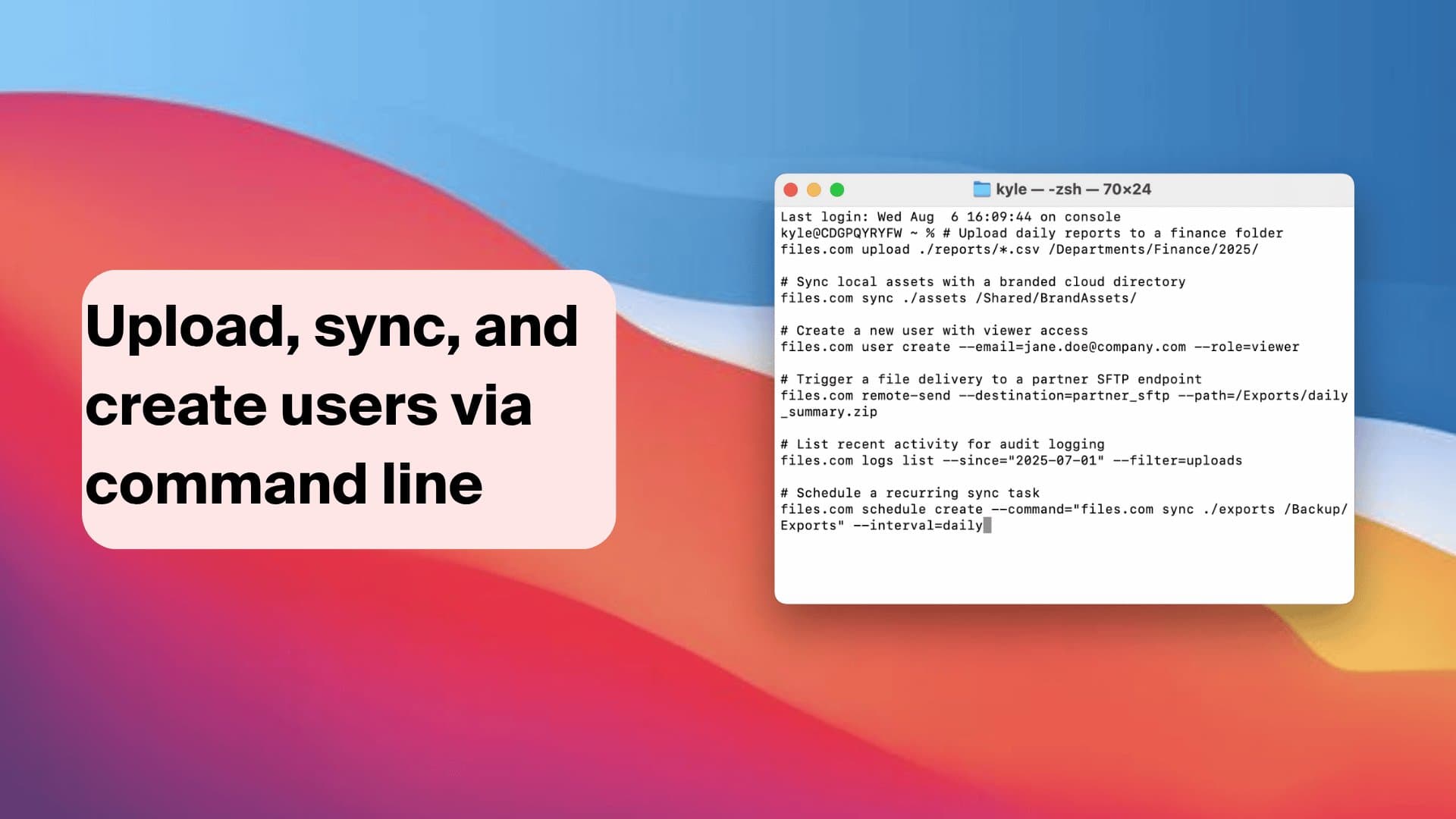
The Files.com Command Line app lets you talk to Files.com straight from a terminal. You can upload, download, and sync files without opening a browser. If you have admin access, you can manage your site that way too.
That makes it the right tool for the machines that have no screen and the work no person wants to do by hand. Type a command to move a file right now, or put that same command in a script and let it run every night on its own. Anything you can do in the web app, you can do here in code.
One Tool That Runs Anywhere
The same command-line app works across every system your team runs, and it moves files as fast as anything we make.
Runs On Every System You Have
One tool for Windows, macOS, and Linux, built for both ARM64 and x86_64 chips. The same commands work the same way on a laptop, a server, or a container, so you learn it once and use it everywhere.
Built For Headless Servers
No screen and no mouse needed. The CLI is made for the kinds of machines that never have a window open: servers, containers, and remote boxes you only ever reach over SSH. So your file transfers run on the same machines your jobs already run on.
As Fast As It Gets
The CLI moves files at the same speed as the SDKs and the Desktop App, because they all share the same high-speed transfer engine. When a deadline is tight, you get the fastest path between your machine and Files.com.
Picks Up Where It Left Off
Transfers run in parallel and resume on their own. If a big upload or download gets interrupted, the CLI continues from where it stopped instead of starting the whole thing over. A dropped connection costs you a few seconds, not the whole job.
Made To Be Scripted
The CLI is built to be called by other programs, so you can automate file work and site admin without a person in the loop.
Drop It Into Any Script
The CLI is built to be called by other programs. Use it inside cron jobs, shell scripts, PowerShell, CI and CD pipelines, and scheduled tasks to move files on a schedule with no one watching.
Automate The Boring Work
Hand off the daily uploads, downloads, and folder cleanup to a script and let it run on its own. Your team stops doing the same file chores by hand every morning.
Run Admin Tasks From The Terminal
With admin access, the CLI does the management work too. It can create users, set permissions, and manage share links, inboxes, and folder settings. So you can script the setup of a whole site, not just move files.
Signs In With An API Key
The CLI signs in with a Files.com API key, so an unattended machine never has to store a person’s password. The same key approach drives the rest of the API and SDKs, so one credential works across all of them.
Get Started In Minutes
Download the CLI for your system, sign in with a Files.com API key, and run your first transfer. The full command reference, install steps, and examples live in the developer docs.
Command-Line App Questions
Put Files.com On The Command Line
Download the CLI, sign in with an API key, and move files or run your whole site from a terminal or a script. Works on Windows, macOS, and Linux.
No credit card required • Free for 7 days • Live in minutes