





































Stream Every Files.com File-Activity Event Into Splunk

Files.com runs your SFTP transfers, partner exchanges, and file automations, and records everything that happens along the way. Every login, upload, download, permission change, and automation run is written down. This integration sends that record straight into Splunk as it happens, so file activity shows up in the same searches your security team already runs.

No credit card required · 7-day free trial · Live in minutes

#1 MFT vendor in Gartner Peer Insights
Trusted by 4,000+ companies
Every protocol included
SplunkFiles.com
  • G2 Leader — Managed File Transfer, Summer 2026
  • G2 Best Results — Managed File Transfer, Summer 2026
  • G2 Best Usability — Managed File Transfer, Summer 2026
  • G2 Best Relationship — Managed File Transfer, Summer 2026
  • G2 Easiest Setup — iPaaS, Summer 2026
  • AWS Partner — Files.com is a verified AWS Partner.
  • Google Cloud Partner — Files.com is a verified Google Cloud Partner.
  • Microsoft Partner — Files.com is a verified Microsoft Partner.

4,000+ organizations rely on Files.com every day

Real companies. Real file flows. Real results.

Marc Jacobs logo
Cognizant logo
Bloomberg logo
TowneBank logo
PBS logo
Carrier logo
Hot Topic logo
Planet Fitness logo
Kaplan logo
Ashley Furniture logo
KFC logo
Mitsubishi logo
Stamps.com logo
Kyndryl logo
CRISPR Therapeutics logo
Equifax logo
Banner Health logo
Norton Rose Fulbright logo
Michelin logo
Redis logo
e.l.f. logo
Lilly Pulitzer logo
New Era logo
Digicert logo
Toyota logo
BBB logo
GoDaddy logo
Hershey logo
Toast logo

Why Teams Stream Files.com Into Splunk

Your security team already sends firewall, endpoint, cloud, and application logs into Splunk. File movement is usually the gap. Partner SFTP sessions and transfers of regulated data happen inside the file platform, where Splunk can't see them. Files.com closes that gap by sending its own activity into Splunk, so file activity lines up next to everything else.

File Activity In The Same Search

Files.com sends a record of every login, upload, download, permission change, automation run, and API call to Splunk the moment it happens. Your security team sees who did what to your files right in Splunk, next to everything else they watch. They catch a problem as it happens instead of piecing it together after something goes wrong.
Sends Straight To Splunk

Files.com sends events straight into Splunk through its HTTP Event Collector, the path Splunk is built to receive on. There is nothing extra to install in between, so you set it up once and there is nothing in the middle to keep running or watch for failures.

You Choose Which Logs Flow

Everything streams by default. If you only want some of it, pick what each Splunk instance gets. Send settings changes to one place and SFTP sessions to another.

A Tamper-Proof Record Behind The Stream

The events come from the Files.com audit log, which can't be edited and is kept for 7+ years. Splunk does the searching and alerting; Files.com holds the original, trustworthy record every event came from.

Works With Splunk Enterprise And Splunk Cloud

The same setup sends to Splunk running on your own servers and to Splunk Cloud. The only thing that changes is the address you paste in.

app.files.com
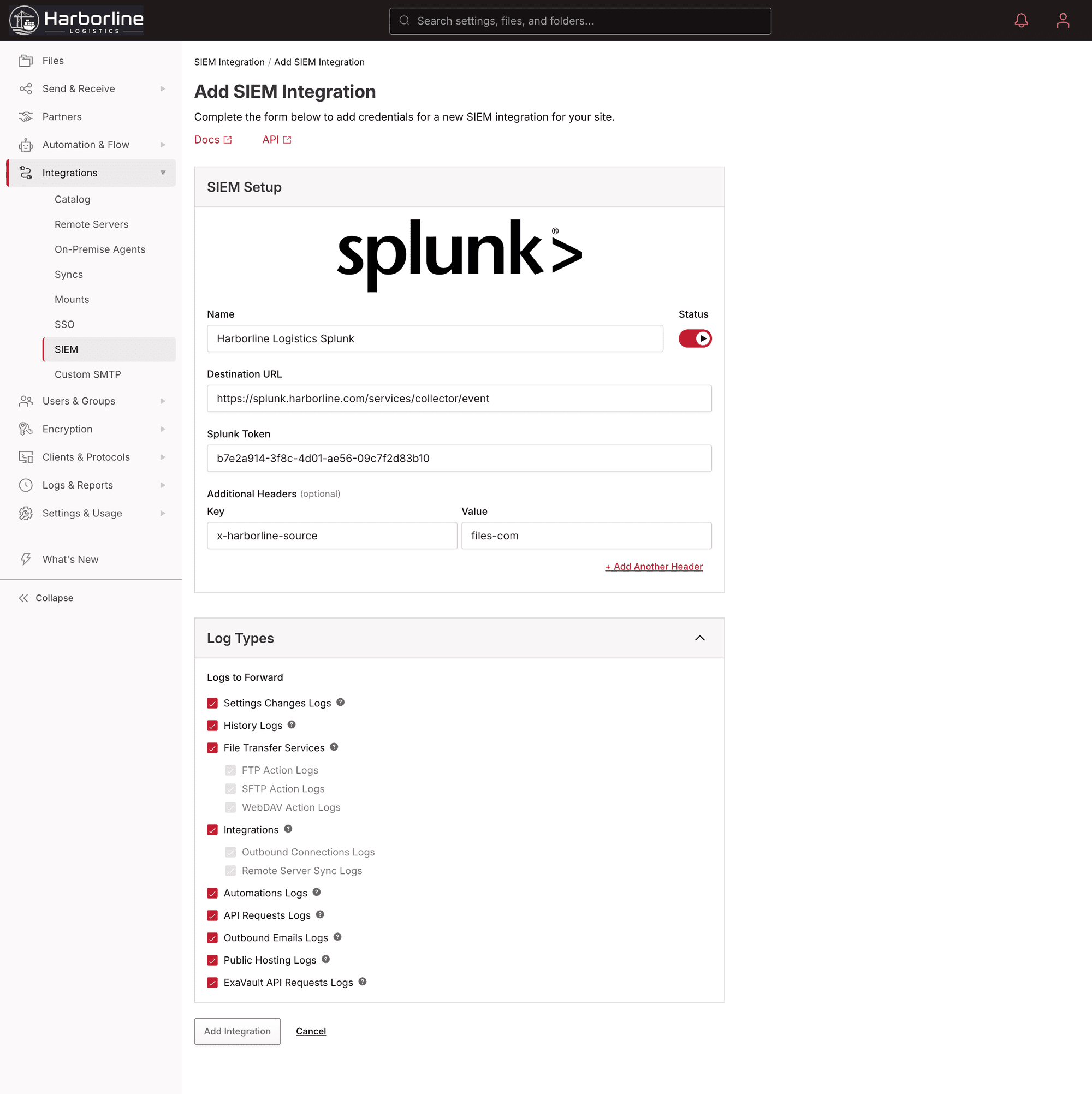
Configuring the Splunk SIEM integration in Files.com: the HTTP Event Collector destination URL, the Splunk token, and the log types to forward

The Control Splunk Watches But Doesn't Provide

Splunk reads the events. It doesn't decide who can touch which files or keep the record of what they did. Files.com does that part: access folder by folder, every action written to a record that can't be changed, and the same company logins your team already uses. That record is exactly what gets sent to Splunk.

Give People Access To Only Their Folders

Hand each team, project, or person the exact folders they need. The person you see in a Splunk search is the same account Files.com controls access for.

A Record Of Everything That Happens

Every action on Files.com is written down, even the log categories you never stream to Splunk. When a dashboard number is questioned, you pull the original entry in the audit log and prove what happened.

The Same Logins Your Company Already Uses

People sign in with your company login through SSO, and SCIM keeps Files.com matched to your directory. Deprovision someone and their file access is gone right away.

Delivery That's Encrypted And Logged

The stream to Splunk is encrypted and runs with a token. Files.com also logs the act of sending, so if a delivery fails you can see it and look into it.

Connect Splunk The Way That Fits Your Workload

Live Stream Into Splunk

Files.com sends each event into Splunk the moment it happens, so you can watch, correlate, and alert in real time. This is an Enterprise-plan feature; it isn't on Starter or Power.

Drop Log Files In A Folder

Instead of a live stream, Files.com can write log files to a folder on a schedule you set, from every 5 minutes up to every 6 hours. Use it when Splunk ingests in batches, the network is locked down, or you want a long-term archive alongside the live feed.

How Teams Use Splunk On Files.com

Catch Someone Pulling Too Many Files

Someone downloads far more files than usual over SFTP. Files.com sends each download to Splunk as it happens, so a Splunk rule can alert on it right next to the endpoint and network activity already on the dashboard. Your team looks in one place, not several.

Answer "What Did They Take?"

After a suspected breach, your team searches Splunk for every file the account touched: uploads, downloads, links it opened, permissions it changed. There is no need to rebuild the story from raw network captures.

Watch Your Partner Transfers

Partner SFTP sessions show up in Splunk. Your ops team can build dashboards on which transfers succeed, which logins fail, and which connections drop. They get alerted the moment a partner's nightly batch stops arriving, instead of hearing about it from the partner.

Catch A Security Setting Being Changed

Every setting change shows up in Splunk as it happens, including turning MFA on or off. So if a security control gets changed when it shouldn’t, you get an alert that day instead of finding out at the next audit.

Files.com Features That Pair With Splunk

Audit Log

A tamper-proof record of every login, file event, and change, kept for 7+ years.

Learn More

Automations & Workflows

Every automation run is an event you can watch and alert on in Splunk, so a job that breaks shows up instead of failing quietly.

Learn More

Compliance Reporting

The same trustworthy record feeding Splunk is the evidence a SOC 2, HIPAA, or GDPR review asks for.

Learn More
Files.com's strengths are simplicity, ease of use, and the cloud connectors. We don't have to invent custom infrastructure for every partner.
Tommy Chapley, Equifax
Tommy Chapley
Senior Software Engineer, Equifax
Files.com is versatile — it can manage many different situations from a single platform. We've consolidated multiple tools onto it.
Regis Litre, Rag & Bone
Regis Litre
Chief Information Officer, Rag & Bone
Files.com is robust and scales to a large enterprise. We get multiple files per minute, per second — and we're a 24/7 organization, so everything has to always be up.
Nelson Miranda, Spirit Airlines
Nelson Miranda
Sr. Systems Engineer, Spirit Airlines

Frequently Asked: Splunk On Files.com

How Files.com streams events into your Splunk, which plans include it, and what happens when a delivery fails.

Files.com sends events to Splunk through its HTTP Event Collector (HEC), the path Splunk is built to receive on, secured with a token. Events arrive in JSON, the format Splunk expects, and there is nothing extra to install in between.

Yes. Files.com sends events to Splunk Enterprise running on your own servers and to Splunk Cloud with the same setup. The only thing that changes is the address you paste in.

Files.com streams logins, file uploads and downloads, permission changes, settings changes, SFTP/FTP/WebDAV sessions, automation runs, and API calls. Everything streams by default, and you can choose which types each Splunk instance gets.

No. Files.com sends events straight into Splunk's HTTP Event Collector, so there is no Splunk forwarder or other middleman to set up and maintain.

No. SIEM streaming is a Files.com Enterprise-plan feature and is not on the Starter or Power plans. Starter also keeps only one week of logs.

No. Files.com delivers the events, and Splunk does the SIEM work: searching, alerting, dashboards, and long-term storage. Files.com records every event in a tamper-proof audit log and streams it into Splunk as it happens.

Files.com retries a failed Splunk delivery automatically, every 60 seconds for the first five minutes and every 15 minutes after that, and logs every delivery attempt. Event Channels can alert your team the moment a delivery fails, and every event stays in the immutable Files.com audit log, so nothing is lost while the stream is down.

Yes. Files.com Log File Streaming writes the same audit and activity log categories to a folder on your site at a configured interval, as JSON or CSV, for archival and batch processing alongside or instead of the live HEC stream.

Files.com ships a Splunk Compatible integration for platforms that support Splunk's HEC protocol without being Splunk itself, plus a generic SIEM (Any Provider) connector that delivers JSON over HTTP to any endpoint that can receive it.

Log streaming forwards complete Files.com audit log categories to Splunk in batches, roughly every 60 seconds. Event Channels deliver individual operational events (SSO failures, user lockouts, automation failures) to a webhook, Slack, Teams, SNS, or Pub/Sub target the moment they occur.

See Files.com Stream Into Your Splunk

Start a 7-day free trial. Drop in your HEC token, send a test event, and watch file activity land in your Splunk search. No credit card required.

No credit card required • 7-day free trial • Live in minutes