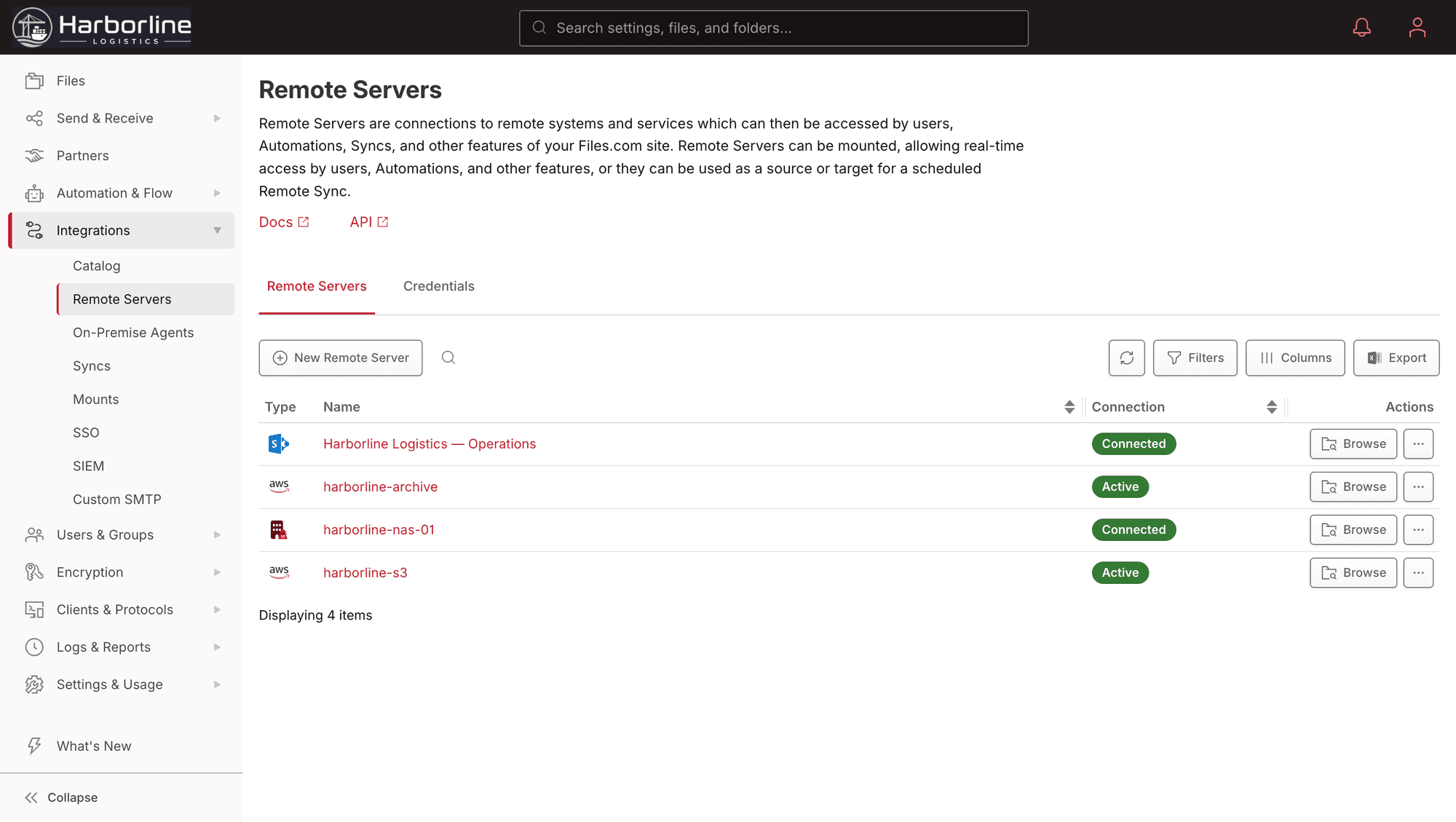
No Rip-And-Replace. No Migration. No Second Copy.

Moving to a new file platform usually means moving your data too — a migration project, a cutover weekend, and a nagging worry about the copy that’s now in two places. Files.com is built for the opposite. You leave the data in the storage you already pay for and already trust, and connect Files.com in front of it.

Once a backend is connected, your users, your protocols, and your automations all work against it as if it were native Files.com storage. Files.com becomes the orchestration and governance layer; your storage stays your storage. When you do want a synchronized copy or scheduled movement between systems, the sync engine handles that — a connected backend can be a live mount or a sync source and target.

Connect The Storage You Already Run

Cloud buckets, collaboration tools, on-prem servers, and any protocol server — mix as many as you need on one site.

Your Cloud Buckets

Connect Amazon S3 and any S3-compatible store, Azure Blob, Google Cloud Storage, Backblaze B2, Wasabi, and Cloudflare R2. Files.com works against the bucket you already pay for.

Your Collaboration Tools

Front SharePoint, OneDrive, Dropbox, and Box with one governed platform — protocols, automation, and audit on top of the tools your teams already use.

Your On-Prem NAS And Servers

Reach a NAS or a server sitting behind your firewall through the Files.com Agent — a small piece of software you run on-site that connects outbound, so you never open an inbound port to the internet.

Any SFTP, FTP, Or WebDAV Server

Already running an SFTP, FTP, FTPS, or WebDAV server, or AS2? Point Files.com at it and put a modern platform in front of it — without moving the server or migrating the data off it.

How A Connected Backend Behaves

It Shows Up As A Folder

A connected backend appears as a folder on your Files.com site. Your people, your apps, and your protocols all see normal folders and files — they never need to know the data actually lives in a bucket somewhere else.

Changes Pass Straight Through

Upload, rename, delete, or make a subfolder in a mounted folder and it happens on the backend in real time. Files.com isn’t holding a copy — it’s a live window onto your storage.

Credentials Stay Locked Down

Files.com always negotiates the strongest encryption the backend supports, and stores every username, password, key, and token encrypted. A shared credential manager means you set a secret once, not once per connection.

Stays Up When A Backend Fails

On Enterprise, point several backends at the same storage and Files.com health-checks each one and fails over automatically to the next healthy one — even across protocols, like an SFTP primary with an FTPS backup against the same NAS.

Use Files.com Without Using Files.com Storage

Say you need to give your team access to a partner’s cloud bucket or a pile of on-prem storage — with permissions, an audit trail, and the protocols your tools speak. The old way means handing everyone their own login or copying the data somewhere you control. A mount skips both. Connect the backend, set permissions once, and your team reaches it over the app, API, FTP, or SFTP — while the files never leave the storage you chose.

Connect as many backends as you need, of as many types as you need, on a single site. High Availability mounts — where multiple backends front the same storage and fail over automatically — are an Enterprise feature. See what each plan includes on the pricing page.

Compare Plans

Remote Server Questions

What teams ask about connecting their own storage to Files.com instead of migrating onto it.

Put Files.com In Front Of Your Own Storage

Start a free trial, connect your S3 bucket, SharePoint, or on-prem NAS, and get one governed platform on top of the storage you already run — no migration, no second copy.

No credit card required • Free for 7 days • Live in minutes