





































Send File Events And Automation Results Straight To Amazon SQS

Files.com sends a JSON message to your SQS queue when an event matches your subscription or an Automation reaches its send step. The queue can be yours, or one a partner or another team owns. Your workers pull at their own pace, and nothing has to poll a bucket to find out a file arrived.

No credit card required · 7-day free trial · Live in minutes

#1 in every G2 rating for MFT
Trusted by 4,000+ companies
Every protocol included
Amazon SQSFiles.com
  • G2 Leader — Managed File Transfer, Summer 2026
  • G2 Best Results — Managed File Transfer, Summer 2026
  • G2 Best Usability — Managed File Transfer, Summer 2026
  • G2 Best Relationship — Managed File Transfer, Summer 2026
  • G2 Easiest Setup — iPaaS, Summer 2026
  • AWS Partner — Files.com is a verified AWS Partner.
  • Google Cloud Partner — Files.com is a verified Google Cloud Partner.
  • Microsoft Partner — Files.com is a verified Microsoft Partner.

4,000+ organizations rely on Files.com every day

Real companies. Real file flows. Real results.

Marc Jacobs logo
Cognizant logo
Bloomberg logo
TowneBank logo
PBS logo
Carrier logo
Hot Topic logo
Planet Fitness logo
Kaplan logo
Ashley Furniture logo
KFC logo
Mitsubishi logo
Stamps.com logo
Kyndryl logo
CRISPR Therapeutics logo
Equifax logo
Banner Health logo
Norton Rose Fulbright logo
Michelin logo
Redis logo
e.l.f. logo
Lilly Pulitzer logo
New Era logo
Digicert logo
Toyota logo
BBB logo
GoDaddy logo
Hershey logo
Toast logo

Why AWS Teams Put Files.com In Front Of SQS

SQS is great at one thing: carrying work from the system that reports it to the workers that do it. What SQS doesn’t do is the file part. It can’t take files in from partners over SFTP and FTPS, control who can touch which folder, or keep an audit trail. Files.com does that part, and puts a message on your queue the moment something happens. Your workers take it from there.

Something Happens, Your Queue Hears About It

Subscribe an Event Channel to the Files.com events you care about and point it at your queue. A failed Automation run, a user lockout, or a file landing in a folder each arrives as its own JSON message, as it happens.


Your Automation Reports Exactly What It Did

An Automation can send a message from any branch, once for each file or record that reaches that step. You build the JSON with TransformScript, so the message carries the path, the partner, and the result in the shape your worker already reads.

Workers Pick Up Messages When They're Ready

Your consumers pull from the queue at their own pace. A worker that is mid-deploy or working through a backlog picks up where it left off. The queue holds every message until a worker takes it, so a deploy downstream doesn’t cost you a file event.

No More Lambda Watching A Bucket

Today a Lambda polls a bucket just to find out a partner’s file showed up. Let Files.com be the front door instead. It takes the file in and queues the message itself, with the access controls and audit trail a raw bucket path can’t give you.

FIFO Order When Order Matters

Point Files.com at a FIFO queue with a message group, and SQS hands your worker those messages in the order Files.com sent them. A retried delivery keeps the same deduplication ID, so SQS drops a repeat that arrives inside its deduplication window.

The Details That Matter For SQS

Only The Permission It Needs

The AWS credential only needs permission to send messages to that one queue. Files.com reads the queue’s region and address from its ARN, so it never lists, reads, or deletes anything else in your account. That makes the integration an easy one to approve in a security review.

One Message Per Event, Right Away

An Event Channel sends one message per matching event the moment it happens, with no waiting and no lumping things together. An Automation sends one message per item that reaches the step.

Every Delivery Has A Record

Each Event Channel delivery is logged with its outcome and retry state. If SQS refuses a message, Files.com retries on its own, five attempts by default, and you can tune that schedule per subscription. You can show a message went out, or see exactly why it didn't.

Failed Sends Go Where You Route Them

In an Automation, a send that fails follows that step's Error Handling rules. Route the item down the Error path to a review folder and the rest of the batch carries on, or stop the run. A failed message never disappears quietly.

How Teams Use SQS On Files.com

Partner Upload To Hands-Off Processing

A partner uploads a file over SFTP. An Automation checks it, moves it into place, and sends a message with the final path to SQS. Your ECS or Lambda worker takes the message and loads the file, and nobody touches it in between.

Post Files In The Order They Arrive

Invoice, payment, or EDI files that have to post in sequence go to a FIFO queue under one message group. Your worker gets them in the order Files.com sent them and posts them one at a time.

Put Platform Health On Your AWS Alerting

Event Channels send operational events to the queue as they occur: failed Automation and Sync runs, user lockouts, SSO failures. A worker routes each one into the alerting your team already watches.

Hand Results Back To The Calling App

Your application starts an Automation with a webhook. When the work is done, the Automation sends the result to a queue the application reads. Your app never polls Files.com to ask whether the job finished.

Files.com Features That Pair With Amazon SQS

Amazon SNS logo

Amazon SNS

When one event has to reach several subscribers at once, publish to an SNS Topic instead. SNS can deliver into your SQS queues too.

Learn More
Amazon S3 logo

Amazon S3

Your storage behind it all. Files.com mounts your S3 bucket, so the path in each message points at a file in your own bucket.

Learn More

Automations & Workflows

Run the file steps inside Files.com and send the message as the branch's last step, instead of stitching together Lambda and Step Functions.

Learn More

TransformScript

Shape the JSON your worker expects from the file or record that reached the step.

Learn More

Files.com Will Be At AWS re:Invent 2026

November 30 – December 4, 2026 · Las Vegas, NV

Files.com builds deeply on Amazon S3, Lambda, and the AWS stack, so of course we’ll be on the floor at AWS re:Invent telling our File Orchestration story. The legacy MFT vendors won’t be there.

See Files.com At AWS re:Invent
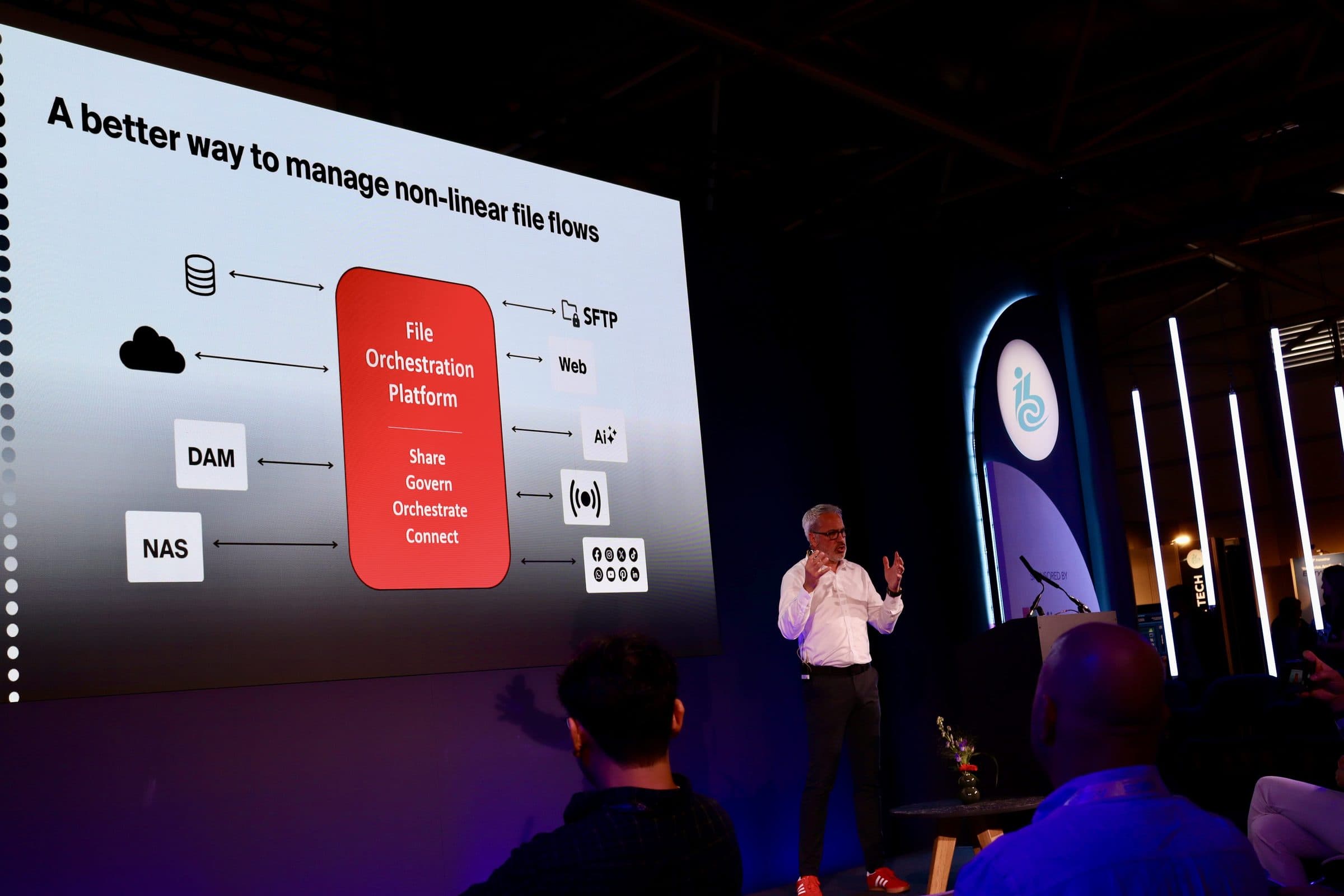
Files.com presenting the File Orchestration Platform at a conference session
“Files.com's strengths are simplicity, ease of use, and the cloud connectors. We don't have to invent custom infrastructure for every partner.”
Tommy Chapley, Equifax
Tommy Chapley
Senior Software Engineer, Equifax
“Files.com is versatile — it can manage many different situations from a single platform. We've consolidated multiple tools onto it.”
Regis Litre, Rag & Bone
Regis Litre
Chief Information Officer, Rag & Bone
“Files.com is robust and scales to a large enterprise. We get multiple files per minute, per second — and we're a 24/7 organization, so everything has to always be up.”
Nelson Miranda, Spirit Airlines
Nelson Miranda
Sr. Systems Engineer, Spirit Airlines

Frequently Asked: SQS On Files.com

How Files.com sends to your queue, what each message carries, and what happens when a delivery fails.

Files.com sends to SQS in two ways. An Event Channel subscription sends each Files.com event that matches it, such as a failed Automation run or a user lockout, to a queue you set up as a target. An Automation can also send a message from any branch, with a JSON body you build for each file or record that reaches that step. Both use the queue's ARN and an AWS credential you provide.

From an Event Channel, the message body is the Files.com event as JSON: its type, time, severity, title, and summary, with the details of what happened. From an Automation, the body is the JSON you build with TransformScript, so it carries exactly the fields your worker reads.

Yes. An Automation that starts when a file arrives can send a message from its last step with the file's path and anything else your worker needs. An Event Channel can also send file activity events to the queue once a Site Administrator turns on file activity events.

Yes. Give the target or the Automation step a message group ID, and Files.com sends to the FIFO queue under that group, so SQS keeps those messages in order. Each delivery carries a deduplication ID that stays the same on retries, so SQS drops a repeat that arrives inside its deduplication window.

The credential needs permission to send messages to the queue, which is the sqs:SendMessage action. Files.com reads the queue's region and address from its ARN, so it never needs to list or look up queues. If the queue is encrypted with a customer managed KMS key, the credential also needs permission to use that key.

Yes. Files.com sends with whatever AWS credential you configure, and the queue's ARN names its account and region. The queue can belong to another team, a vendor, or a partner who runs the downstream pipeline. They grant your credential send access on their queue, and you add the queue's ARN.

For an Event Channel target, the credential is saved on the target, and Files.com never returns the secret access key after you save it. For an Automation, the step reads the credential from a Secret in the Automation's Workspace each time it runs, so you rotate the key in one place and the next run uses it.

An Event Channel retries the delivery on its own, five attempts by default, and records every attempt with its outcome. The event itself stays on record in Files.com whether or not the delivery succeeds. In an Automation, the step's Error Handling rules decide whether the item goes down the Error path or stops the run, and run detail shows the item that failed.

Send to SQS when one consumer works through the messages at its own pace. Publish to Amazon SNS when the same event has to reach several subscribers at once. Files.com sends to both, and SNS can deliver into your SQS queues.

Queue Your First File Event Today

Start a 7-day free trial. Add an SQS step to an Automation, drop in a test file, and watch the message land in your queue. No credit card required.

No credit card required • 7-day free trial • Live in minutes